AI for Decision, Robots for Input : Achieving Fully Automated Workflows via RPA Integration
Discover how to bridge the gap between AI-generated insights and manual data entry. By using File Analysis Assistant PRO to convert unstructured data into JSON "instruction sheets," you can transform RPA into a powerful tool that handles complex tasks from decision-making to execution.


Are you still manually copy-pasting answers generated by AI?
Even when AI produces brilliant ideas or deep analysis, do you find yourself spending hours transcribing those results into Excel or internal systems? Conversely, you may feel the limitations of Robotic Process Automation (RPA), which often struggles with ambiguous tasks like "reading and interpreting email content" because it typically requires structured data.
The solution is to use mitsumonoAI as a "pre-processing" stage for RPA by having the AI generate an "execution instruction sheet." By leveraging AI's advanced reasoning, you can extract essential information from unstructured data—such as emails or images—and convert it into structured data (JSON or CSV) that RPA can process. This enables a seamless automation process from "judgment" to "execution."
Practice | Steps to Fully Automate Inquiry Responses
Let's look at a common sales administration task: "deciphering long customer emails and registering them into a task management tool." Here is how to coordinate AI and RPA for this workflow.
Step 1: Input Unstructured Data (Analyzing Email Logs)
Launch File Analysis Assistant PRO. Upload "inquiry email log files" (text or CSV) automatically saved by RPA, or "daily report files" (PDF/Word) compiled by staff. This method allows you to analyze and structure dozens of inquiries at once, significantly improving operational efficiency compared to manual copy-pasting.
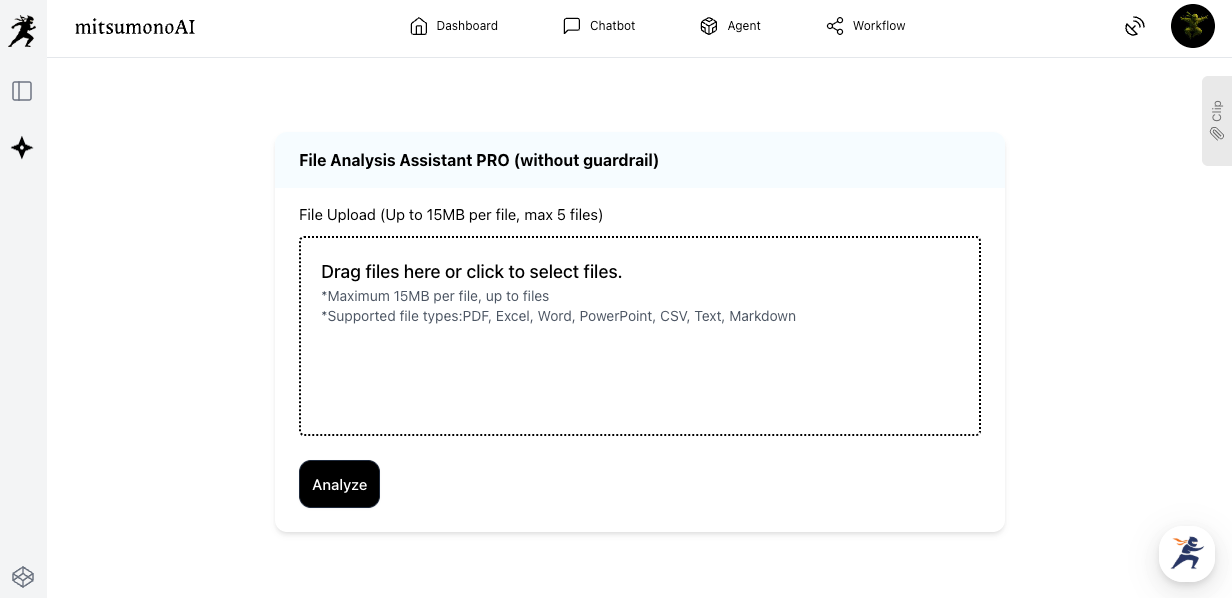
Step 2: Create an RPA "Execution Instruction Sheet" (Prompt Execution)
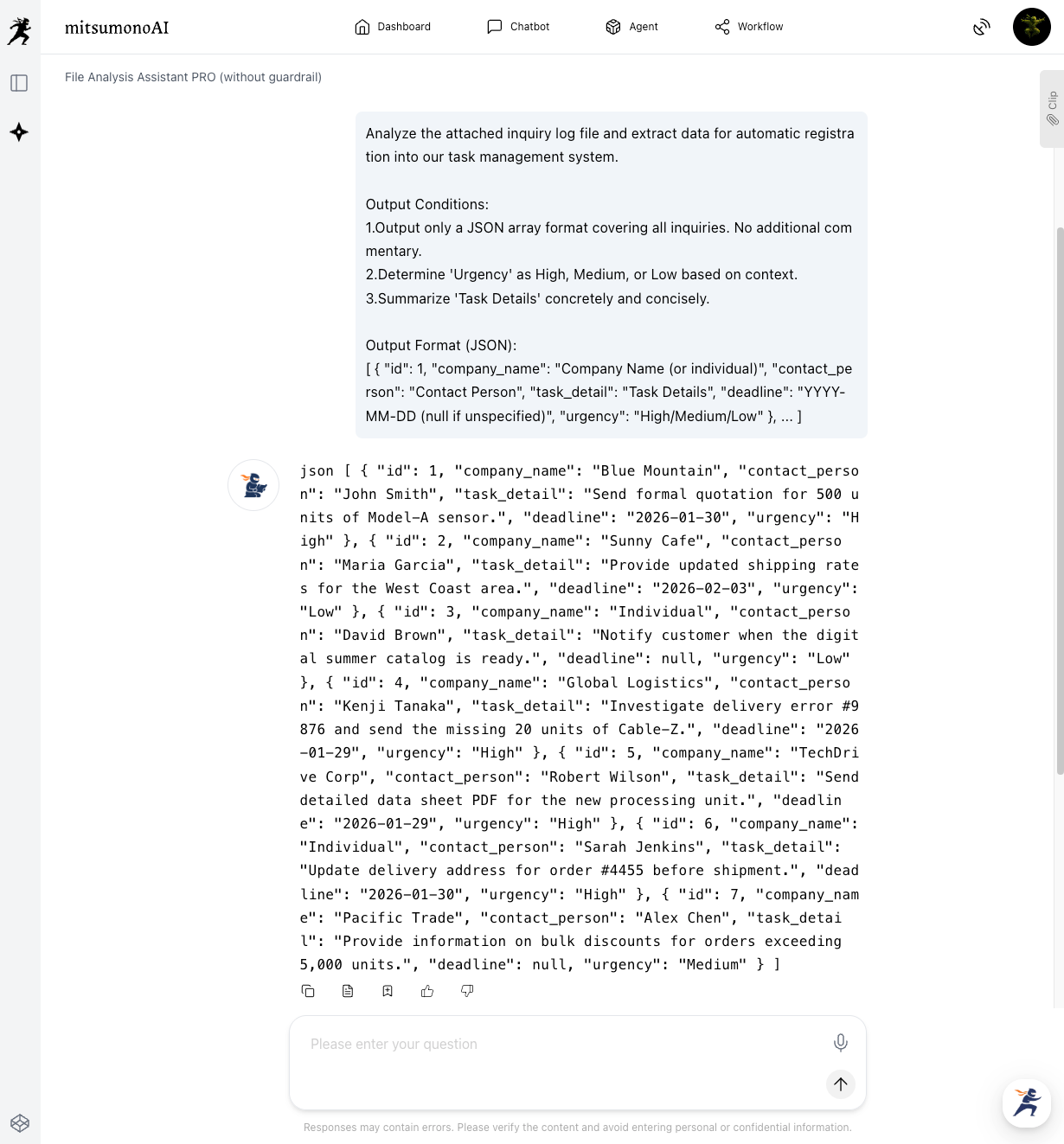
Instruct the AI to analyze the uploaded files and determine "who" wants "what" and "by when," outputting the result in a format easily handled by RPA (such as a JSON list).
"Analyze the attached inquiry log file and extract data for automatic registration into our task management system.
Output Conditions:
1.Output only a JSON array format covering all inquiries. No additional commentary.
2.Determine 'Urgency' as High, Medium, or Low based on context.
3.Summarize 'Task Details' concretely and concisely.
Output Format (JSON):
[ { "id": 1, "company_name": "Company Name (or individual)", "contact_person": "Contact Person", "task_detail": "Task Details", "deadline": "YYYY-MM-DD (null if unspecified)", "urgency": "High/Medium/Low" }, ... ]"
[Column] What is JSON? How do I use it?
You might feel intimidated seeing a string of symbols like { "company_name": ... }. However, think of JSON as a "universal language for robots."
While humans understand phrases like "by next Tuesday," RPA (robots) struggle with ambiguity. JSON is essentially an "organized ticket" where the AI has rewritten the email content with specific labels like "deadline" and "sender."
What should you do?
Humans don't need to decode this. Simply copy the text and paste it into your RPA tool (such as Power Automate or UiPath). When the robot receives data in this format, it instantly understands the parameters and enters them into the system without error. In short: JSON is the "baton" passed from AI to the robot.
Step 3: Passing the Baton to the Robot (RPA Integration)
Copy the JSON text output by the AI (from [ to ]) and save it as a file (e.g., tasks.json). Then, simply configure your RPA tool (UiPath, Power Automate Desktop, etc.) to "Read this file."
This is the act of handing over a "perfect instruction sheet" written by the AI to the robot.
The Workflow Image
Upon receiving the file, the RPA robot reads the text next to "company_name" and automatically enters it into your CRM's "Company Name" field. Similarly, if "urgency" is set to "High," the robot can automatically send a notification to the person in charge via a chat tool.
The only human actions required are the initial "file upload" and "saving the instruction sheet." Hours of reading, judging, and typing are condensed into mere seconds.
Application and Expansion to Other Tasks
- Accounting (Invoice Processing):
Use File Analysis Assistant PRO to read multiple invoice PDFs. Have the AI list the "Account Items" and "Amounts," then let RPA enter them into accounting software to drastically shorten bookkeeping time. - SNS Operations (Scheduled Posts):
Use File Analysis Assistant PRO to analyze historical data and output the "High-Engagement Time Slots" and "Hashtags." RPA can then follow these instructions to set up scheduled posts, reducing manual effort.
Conclusion: AI as the "Brain," RPA as the "Limbs"
By combining the "judgment" of AI with the "execution" of RPA, you can achieve end-to-end automation for tasks that previously required manual intervention. Using mitsumonoAI to create "execution instruction sheets (structured data)" makes internal data integration surprisingly smooth.
Start by choosing one daily task—such as reading emails and entering data into a system—and try this prompt. Seeing your data organized in JSON format will make you realize: "I can actually automate this!"
mitsumonoAI is not only for building RPA-integrated workflows but also for solving diverse business challenges, improving efficiency, and creating new value.
For more use cases and the latest updates, please visit the mitsumonoAI blog.