How to Achieve Seamless Information Utilization with the "Clip Function"
We introduce use cases for the "Clip Function," which enhances information management and operational linkage, covering everything from daily notes to saving, editing, and reusing AI output.


The "Clip," introduced in August 2025, is a convenient tool that allows you to collectively save and manage not only the information output by the AI but also your own notes and thoughts. You can easily review and modify them whenever needed.
Utilizing this "Clip" makes it possible to efficiently save output and smoothly link it to other functions, achieving seamless information sharing between multiple assistants. This time, we will introduce two use cases for the "Clip" function that demonstrate how to effectively utilize the AI to obtain highly accurate answers by using various features cross-functionally.
Use Case 1: Consistently Executing from SWOT Analysis to Persona
Creation First, we use "SWOT Analysis" to objectively grasp the company's strengths and opportunities, identify the target segment, and then use three functions to create the ideal customer as a persona. Using the Clip Function allows for efficient information transfer to the subsequent function.
Step 1: Execute SWOT Analysis and Clip Strategic Insights
▶︎ Internal SWOT Analysis Assistant
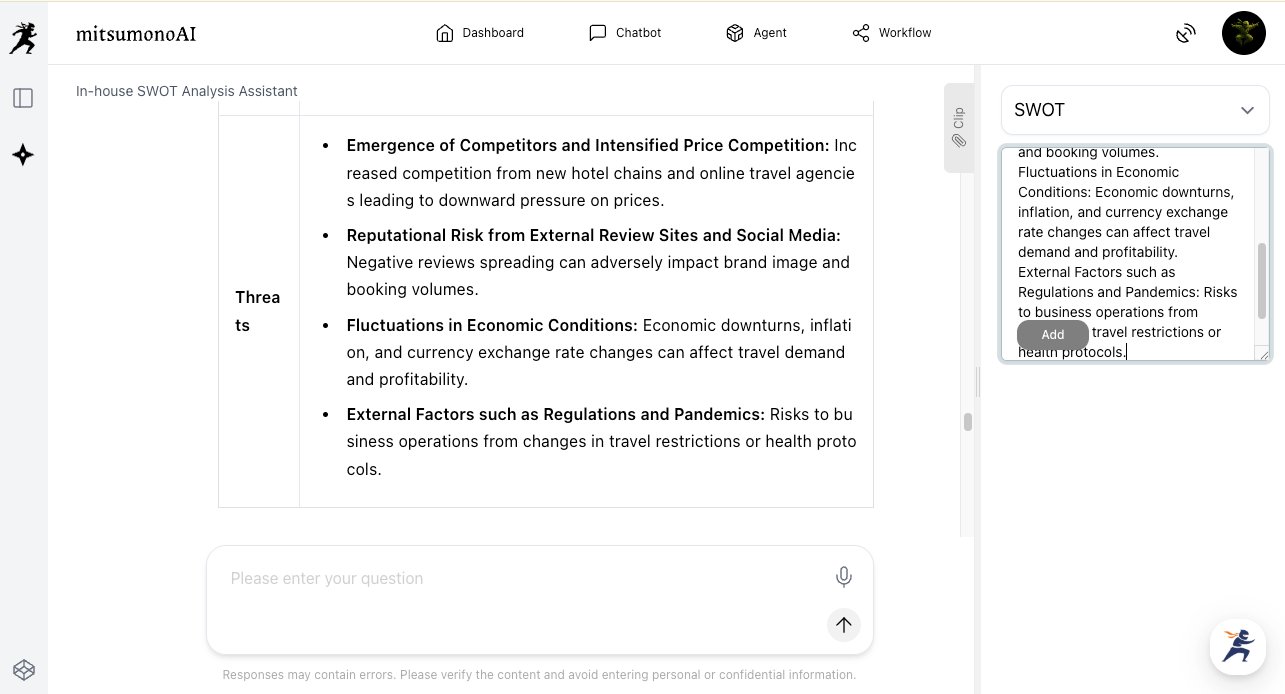
Analyze the business environment and internal company situation using the "Internal SWOT Analysis Assistant" and save the SWOT analysis results to the Clip.
Step 2: Utilize Clip Information in the "Target List Creation Assistant"
▶︎ Target List Creation Assistant
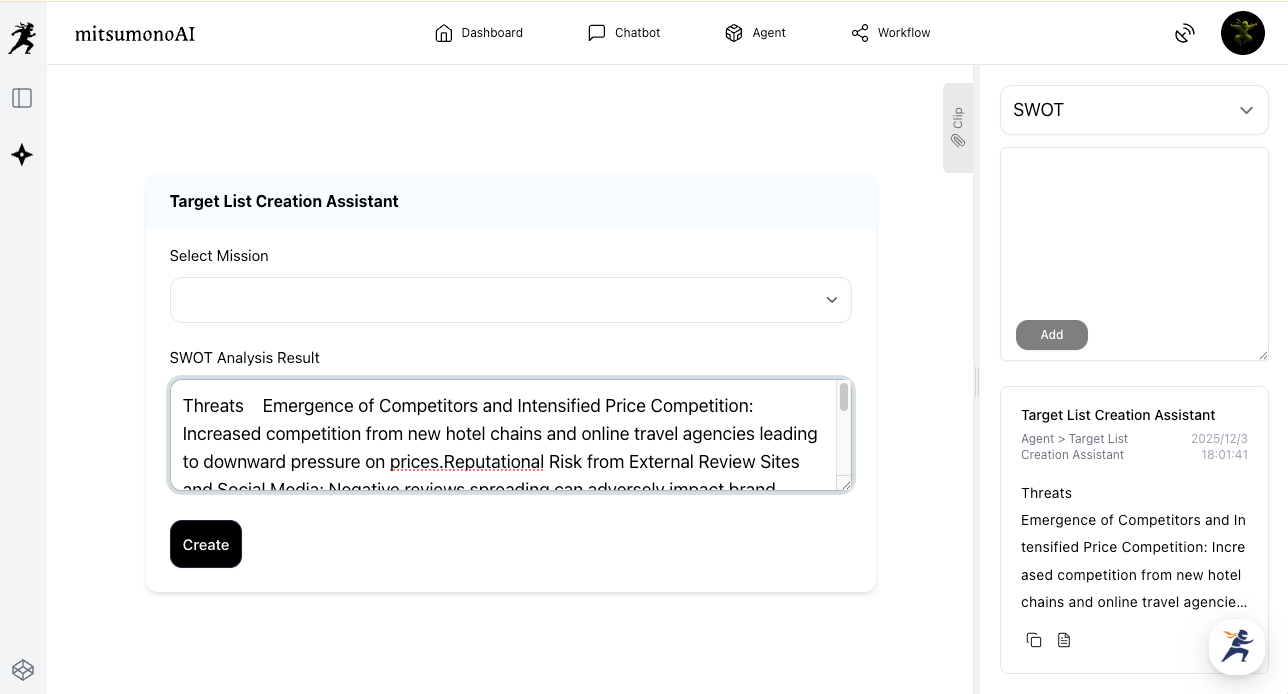
Next, launch the "Target List Creation Assistant." Paste the information saved from the SWOT analysis from the Clip window into the input field and click "Create."
Based on the SWOT analysis information, a more specific and strategic target audience list will be created.
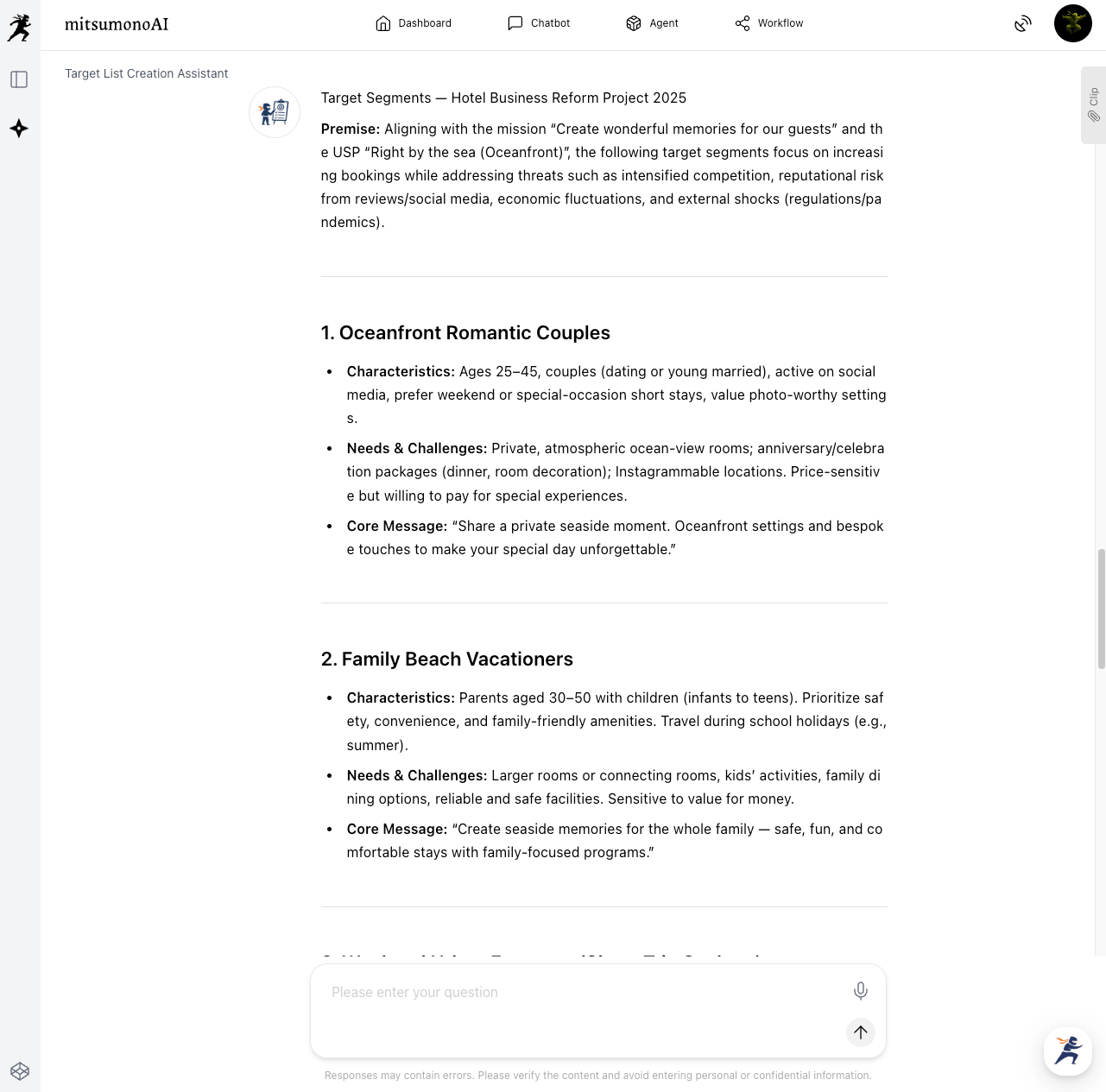
Save the information for the target audience you wish to delve deeper into from the generated list to the Clip.
Step 3: Create the Persona
▶︎ Persona Creation Assistant
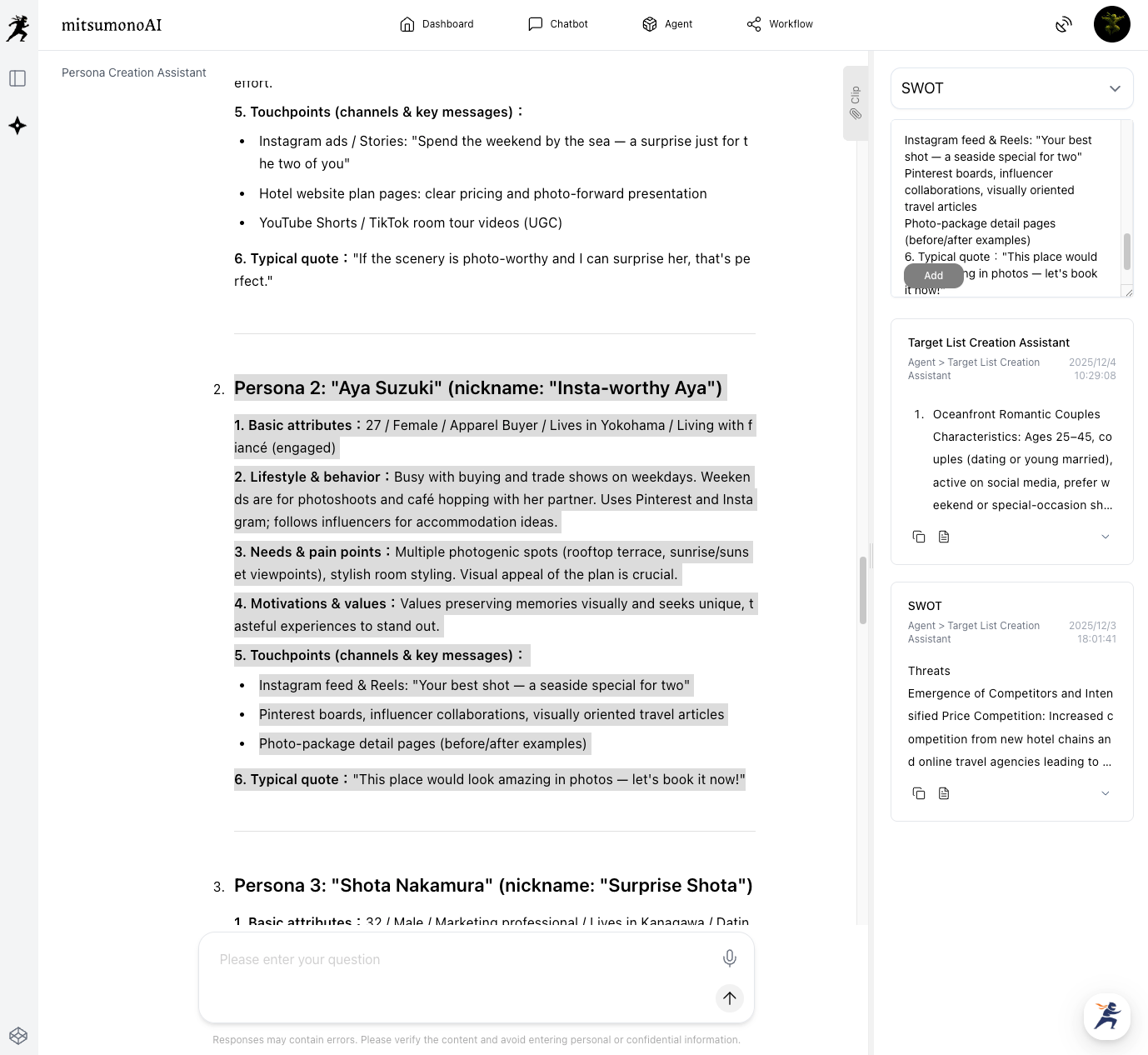
Paste the clipped target profile information saved earlier into the input field of the "Persona Creation Assistant" to create a persona with more detailed attributes such as age, occupation, values, challenges, and lifestyle. By saving this persona information to the "Clip" and using it as an instruction in the chat for various subsequent features and tools, you can elicit highly accurate information from the AI based on a concrete target profile.
Examples of Persona Information Utilization
- When developing new accommodation plans or menus, instruct the AI to propose ideas aligned with the persona's interests and challenges.
- When formulating content marketing strategies, instruct the AI to analyze what information the persona values and which SNS channels they use, enabling you to find messaging and optimal dissemination methods that better capture the target audience's response.
- When considering customer support scenarios, anticipating the persona's emotions and behavioral patterns leads to more personalized service delivery.
Use Case 2: Consulting Sensei AI on a New Menu Idea
For a new menu proposal developed with the "Product/Menu Development Assistant," use the Clip Function to add observations that factor in your company's management status and customer pain points. Subsequently, by linking this to "Sensei AI - Restaurant," you can obtain multifaceted advice that incorporates a digital marketing perspective, thereby increasing the likelihood of the new menu's success.
Step 1: Develop a New Menu Proposal and Save it to the Clip
▶︎ Product/Menu Development Assistant
Based on the restaurant's concept, use the "Product/Menu Development Assistant" to devise a new menu proposal aligned with seasonal ingredients or a specific theme.
Save the essential information from the resulting menu proposal to the Clip.
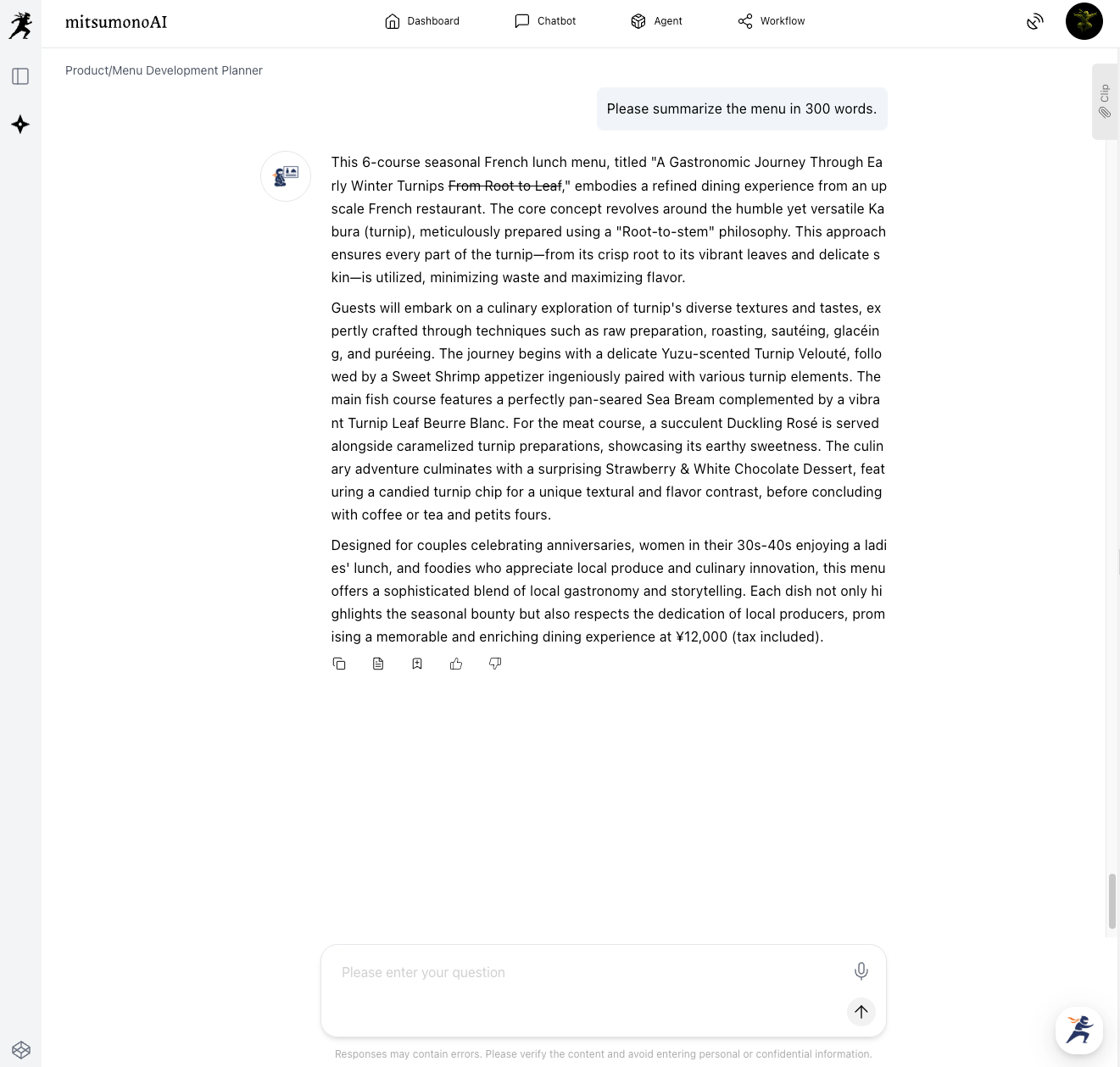
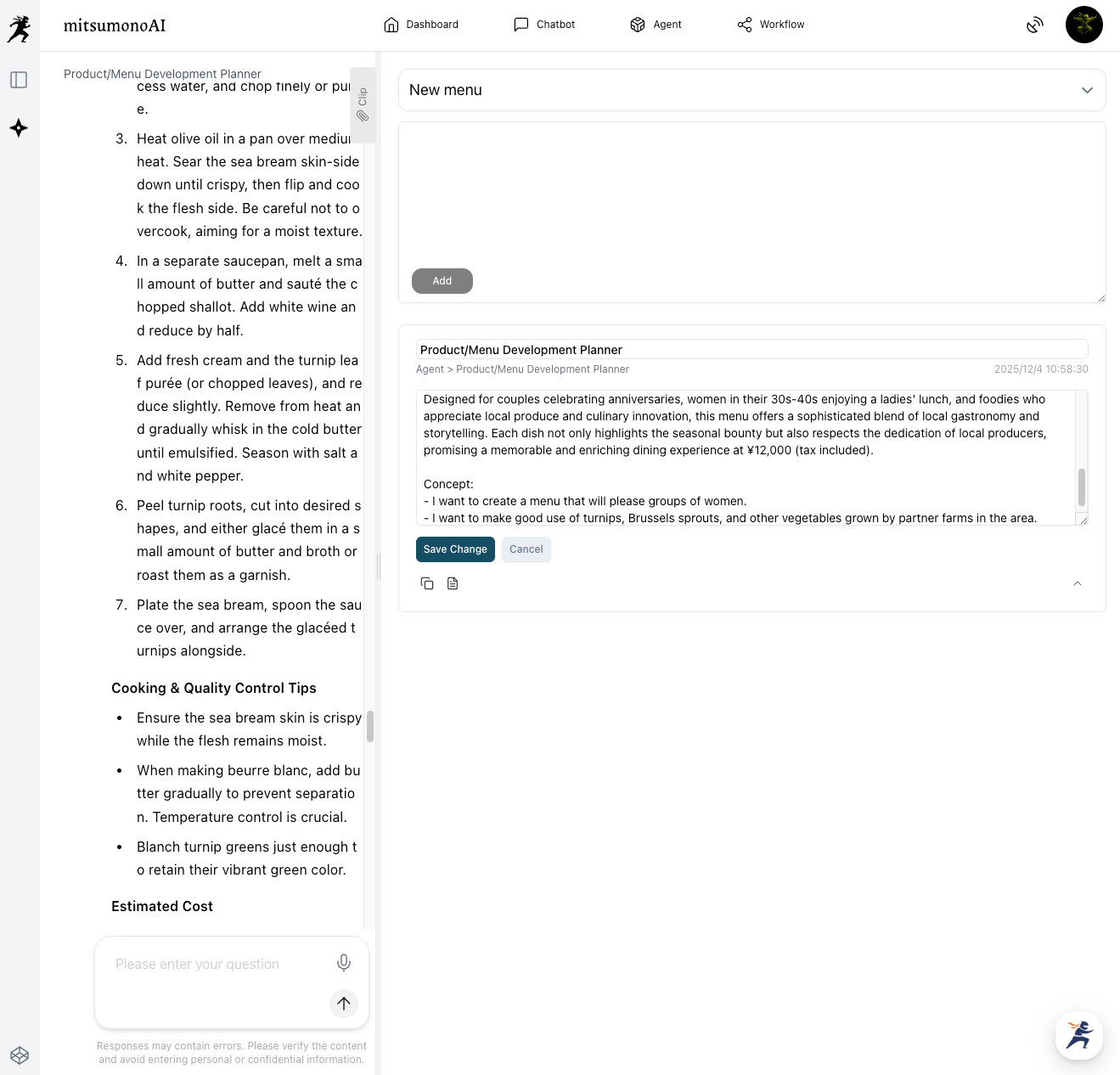
Step 2: Add Company Status, Observations, and Plans to the Clip
Expand the clip of the saved new menu proposal, make additions or modifications as needed, and "Save Changes."
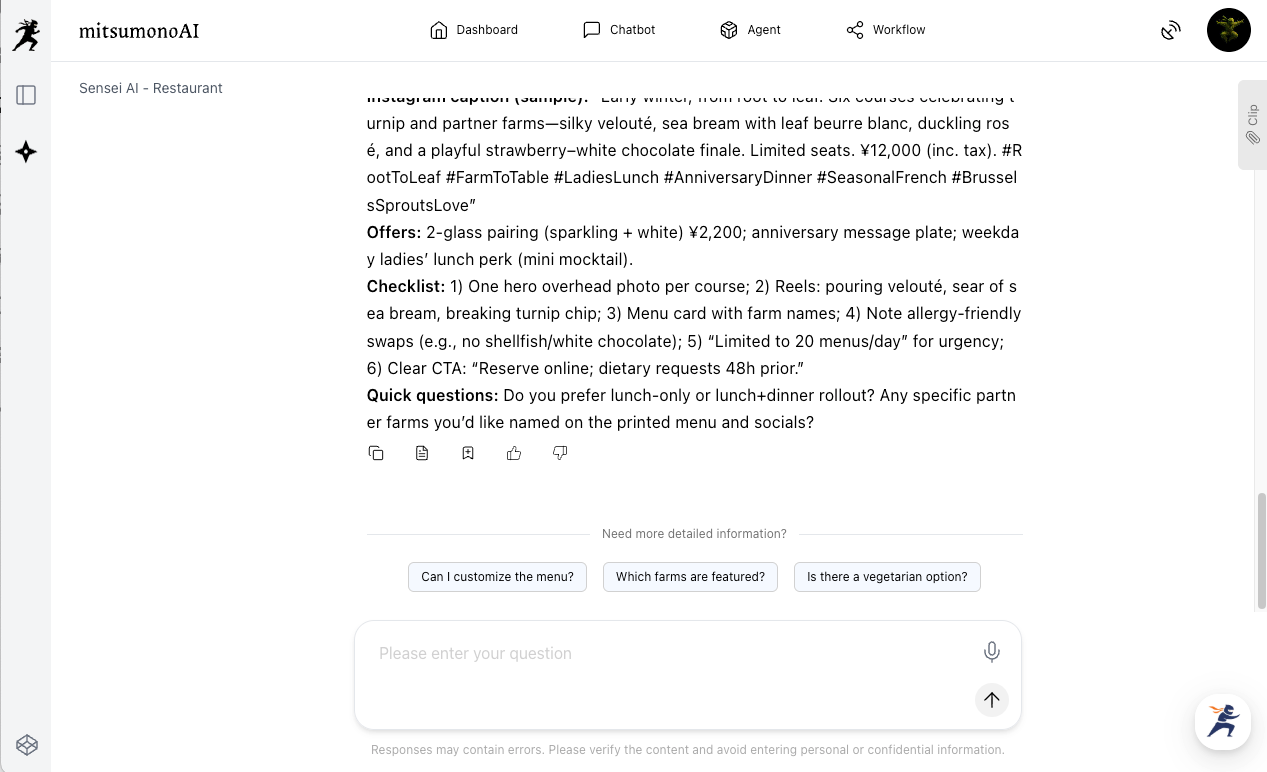
Step 3: Consult "Sensei AI - Restaurant" on the Marketing Direction
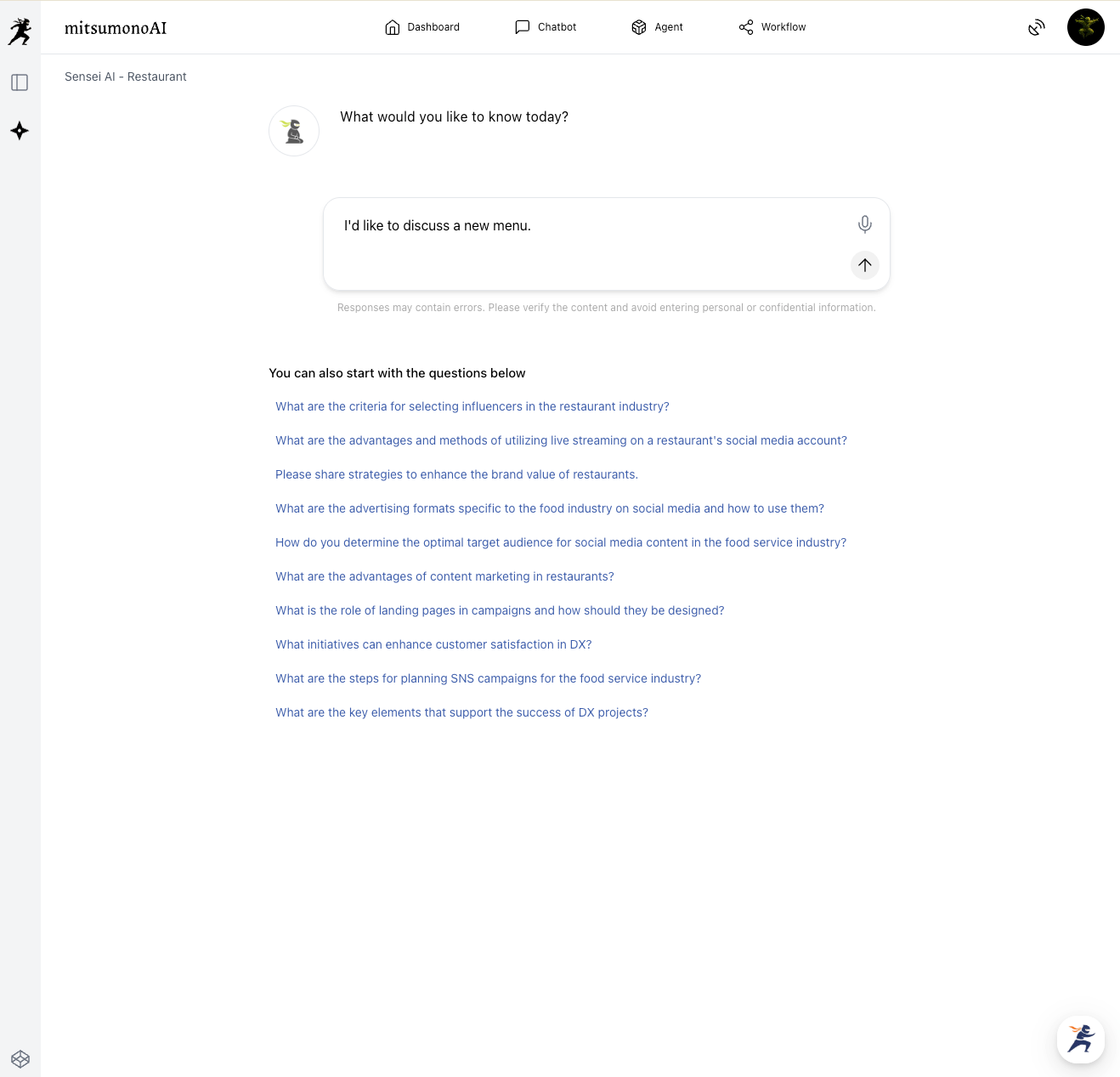
▶︎ Sensei AI - Restaurant
Open "Sensei AI - Restaurant," send the message "I would like to consult with you about a new menu item," and start the conversation.
Paste and Send the Saved Clip Content into the "Sensei AI - Restaurant" Input Field Copy all the information from the clip you saved and added observations to, then paste it into the input field of "Sensei AI - Restaurant" and send.
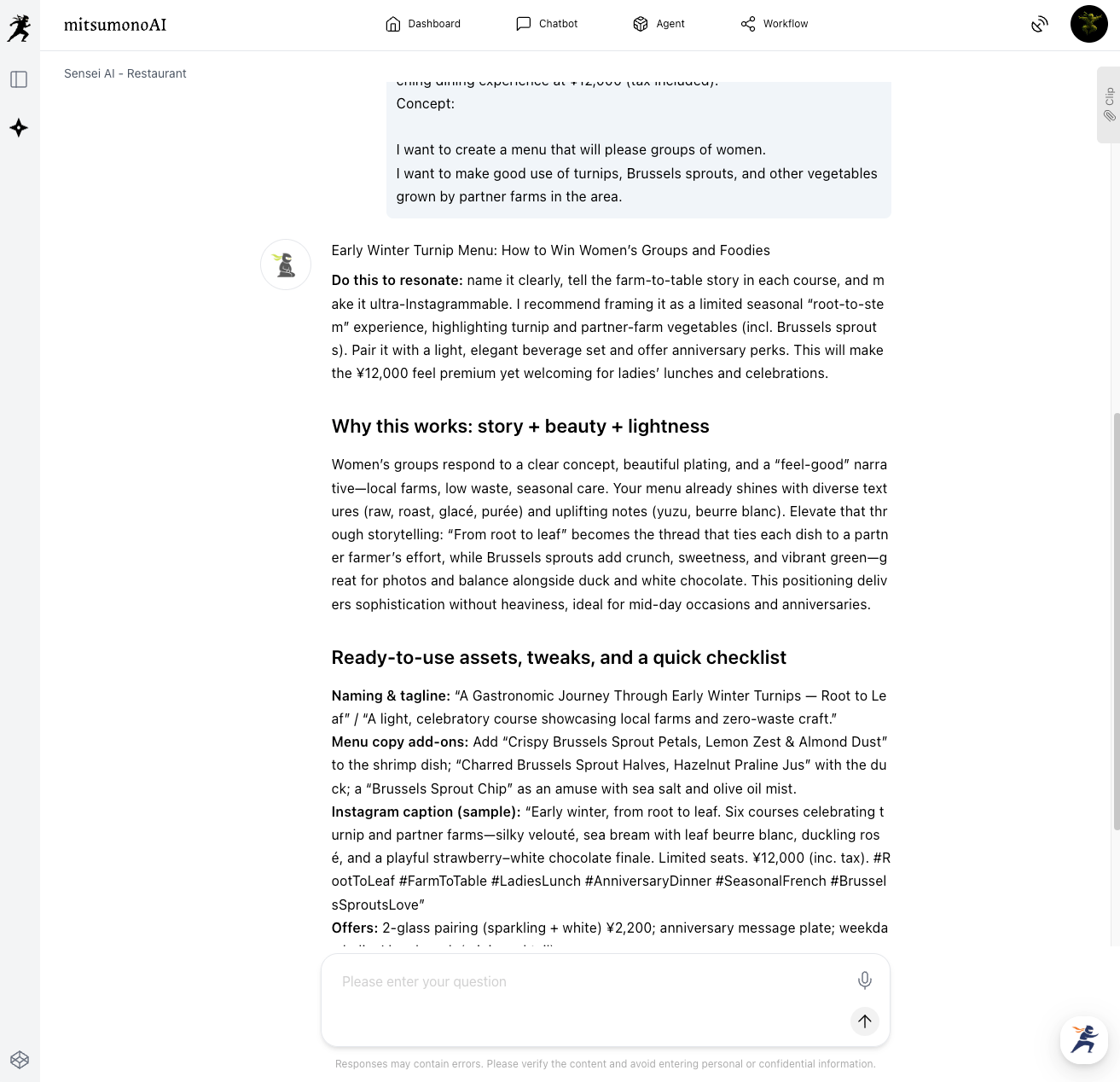
By gaining new ideas and insights that incorporate marketing knowledge, you can increase the menu's feasibility and probability of success.
Further Improve Operational Quality with the "Clip"
Effectively using the "Clip" allows for smooth information exchange even between multiple AI assistants, enabling you to elicit highly accurate answers from the AI that are perfectly tailored to your situation. The contents introduced here are merely examples. We encourage you to try the "Clip" function in various business scenarios and effectively utilize the AI to suit your workflow.