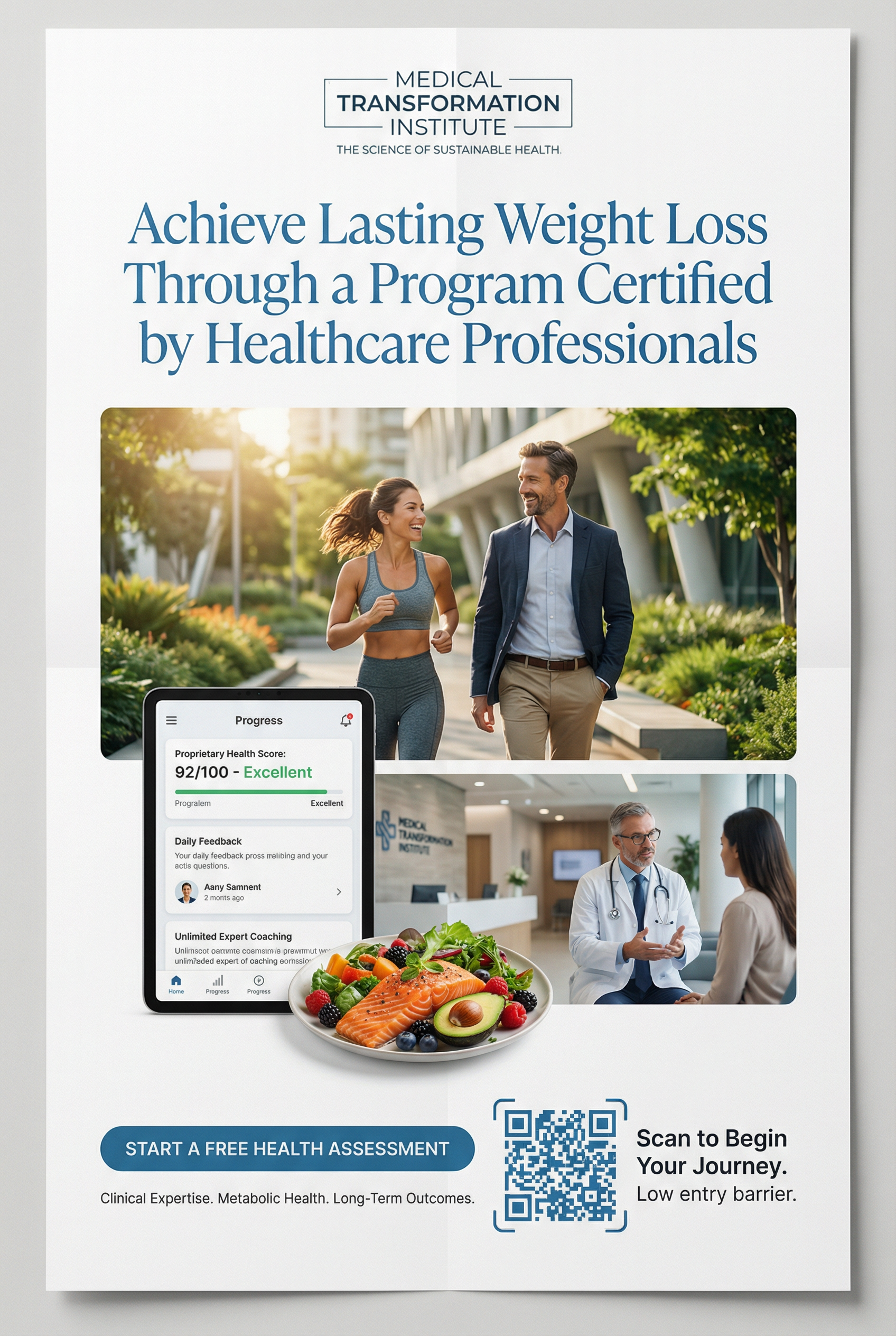
One-Click Designs: Creating Trustworthy Free Diet Consultation POPs
Transform your plain health notices into inviting, professional posters. Learn how to turn a simple URL into a high-quality "Free Diet Consultation" POP that attracts patients effortlessly.

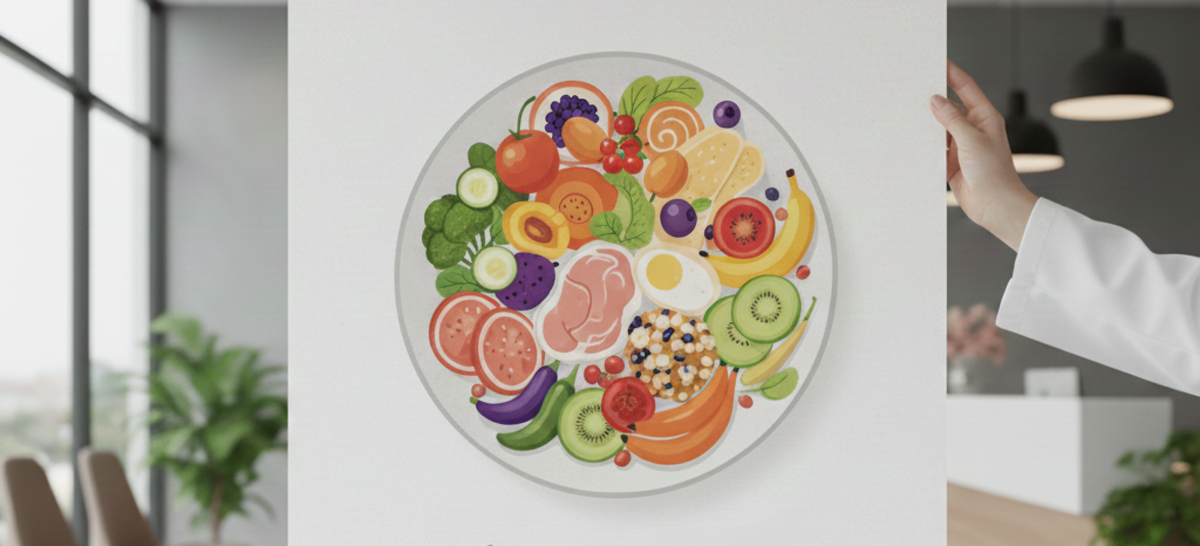
"I want to announce a free diet consultation service, but my Word document looks too plain and uninviting..."
"I want the notice to look professional and encouraging, but I don't have the design skills to make it pop."
Does this sound like your clinic or health center? For staff members, creating a notice that is both medically trustworthy and approachable is a difficult balance. You want to motivate patients to take the first step toward health without making the advertisement feel "salesy" or cold.
In this guide, we will show you how to use a top-tier health portal’s website as a style reference to create clean, professional "Free Diet Consultation" POPs in just a few clicks.
What You Will Learn in This Article
- How to generate a professional health-themed design brief using just a URL.
- How to use the "Clip" function to save and transfer design instructions instantly.
- The 3-step workflow to create posters that put patients at ease.
STEP 1: Generate Professional Instructions with the "Brain" Tool
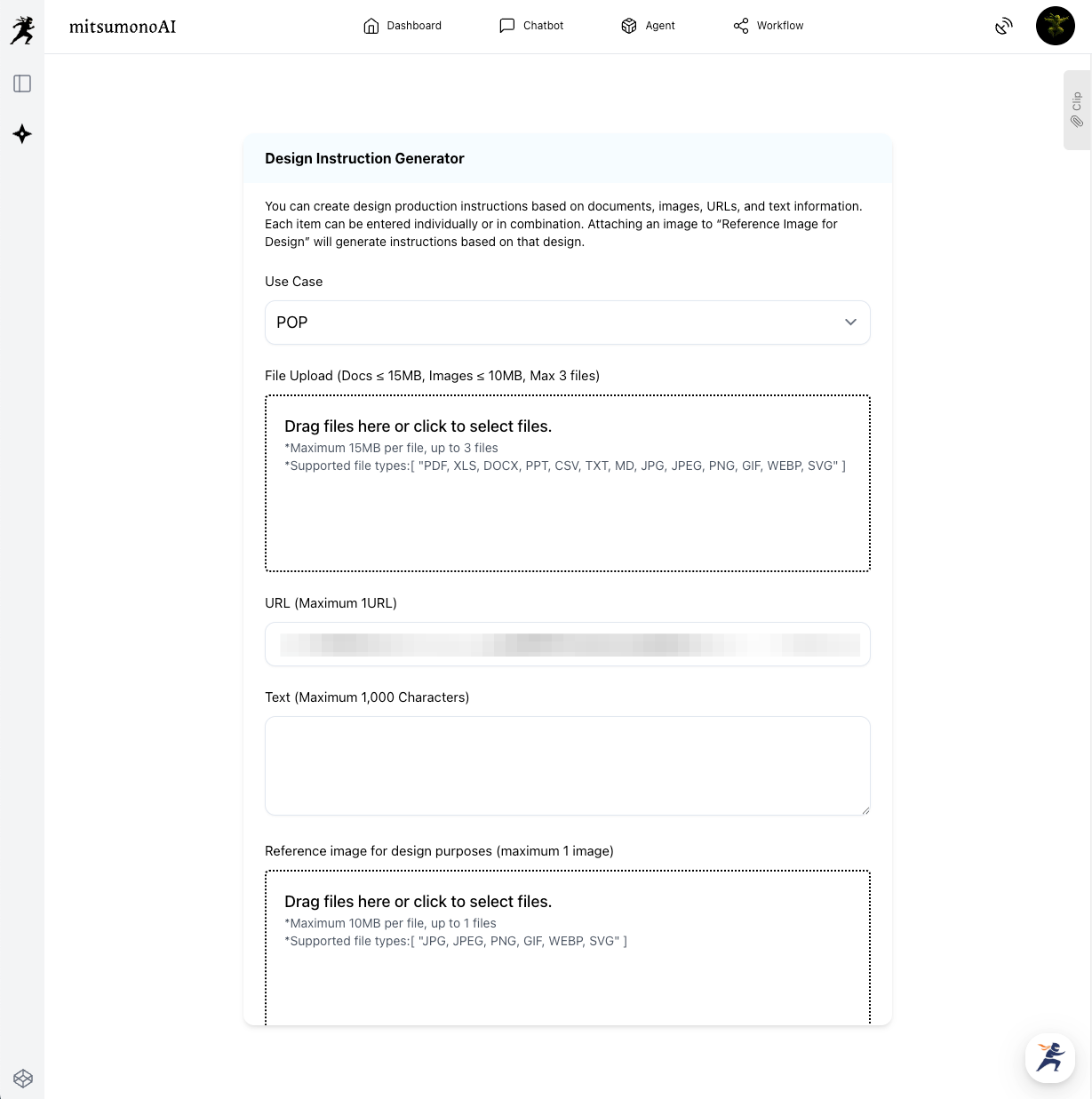
First, we use the Design Instruction Generator. This tool acts as your creative director. By analyzing the URL of a leading health and wellness website, it creates a design brief that ensures your poster looks reliable, clean, and encouraging.
How to do it:
- Select Use Case: Choose [POP].
- Paste the URL: Use the URL of a world-class health information site or a professional wellness portal.
- Generate: The AI will analyze the trustworthy layouts and fresh, healthy color palettes (like soft greens and clean whites) typical of professional medical sites.
Saving to Your Clip
Once the "Creative Production Brief" is generated, you don't need to copy it manually. Simply click the "Save to Clip" button located directly below the result. This stores the brief for instant use.
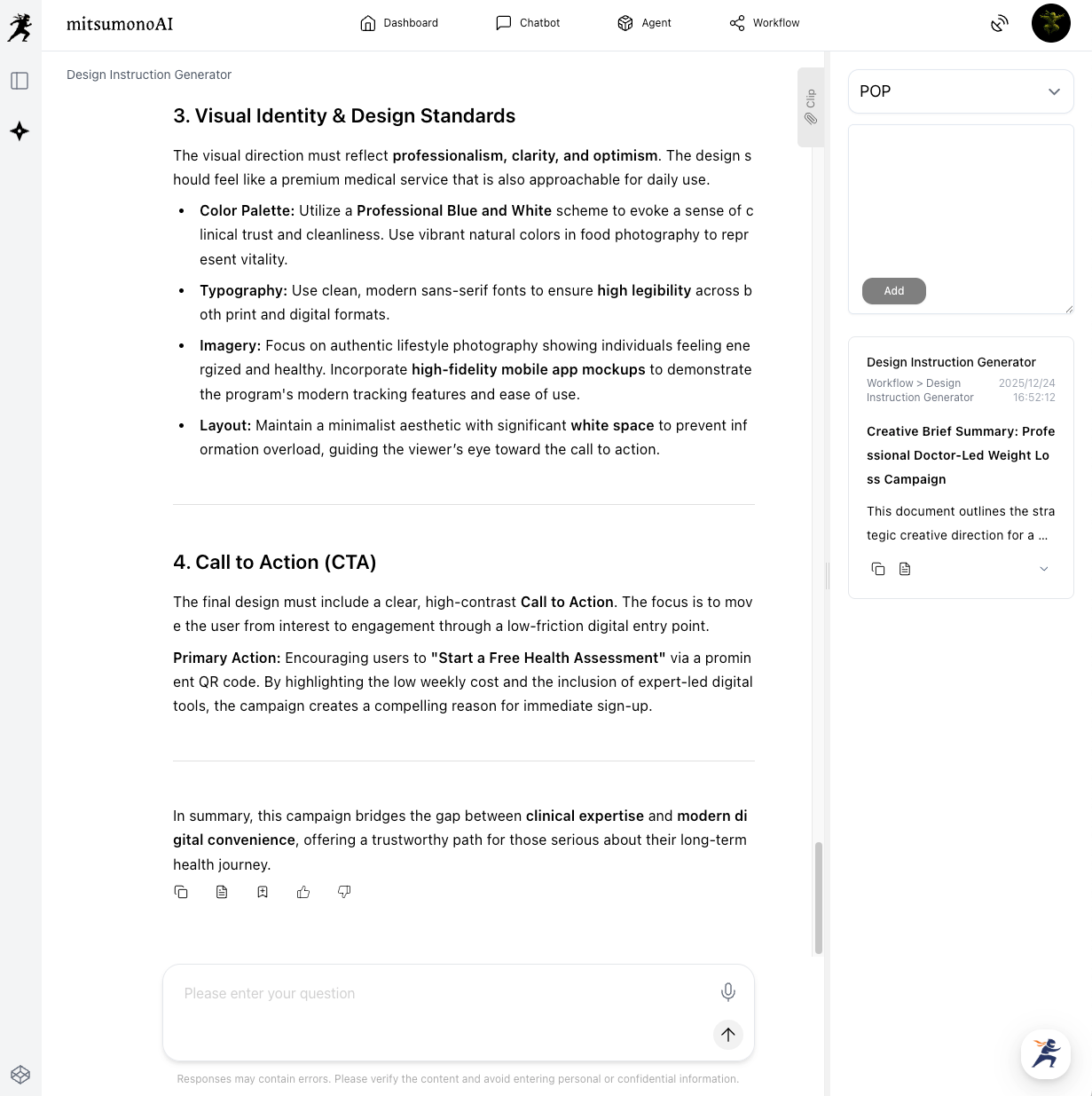
⚠️ Note: Please review the generated instructions. You can edit them to include specific details like "Book at the reception" or "Available on weekdays." If the text is very long, please summarize it, as the next tool has a 3,000-character limit.
STEP 2: Create the POP with a 3-Item Workflow
Next, open the Image Generation Tool 2K. Since your instructions are saved in your Clip, the process is incredibly simple even during a busy shift.
The 3-Item Workflow:
- Use Case: Select [POP].
- Ratio: Select Vertical (3:4) or Vertical (2:3), which are perfect for clinic wall posters or desk stands.
- Image Generation Text: Click the "Copy" button from your saved Clip and paste the text into the box.
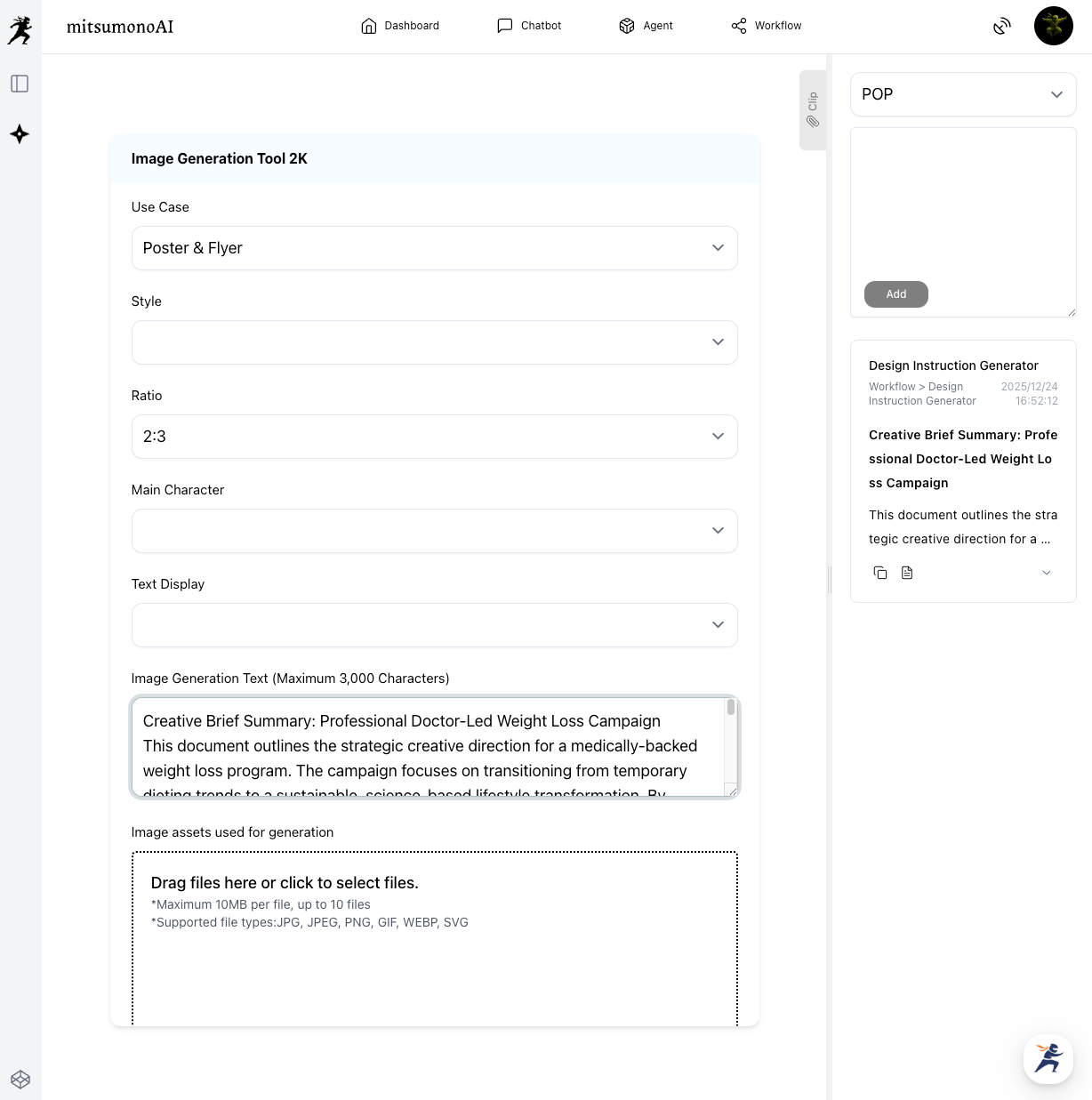
⚠️ Important: The text box has a maximum limit of 3,000 characters. If your clipped brief is too long, please summarize it before pasting to ensure the AI focuses on the most important visual elements (like "bright, healthy atmosphere" or "gentle green accents").
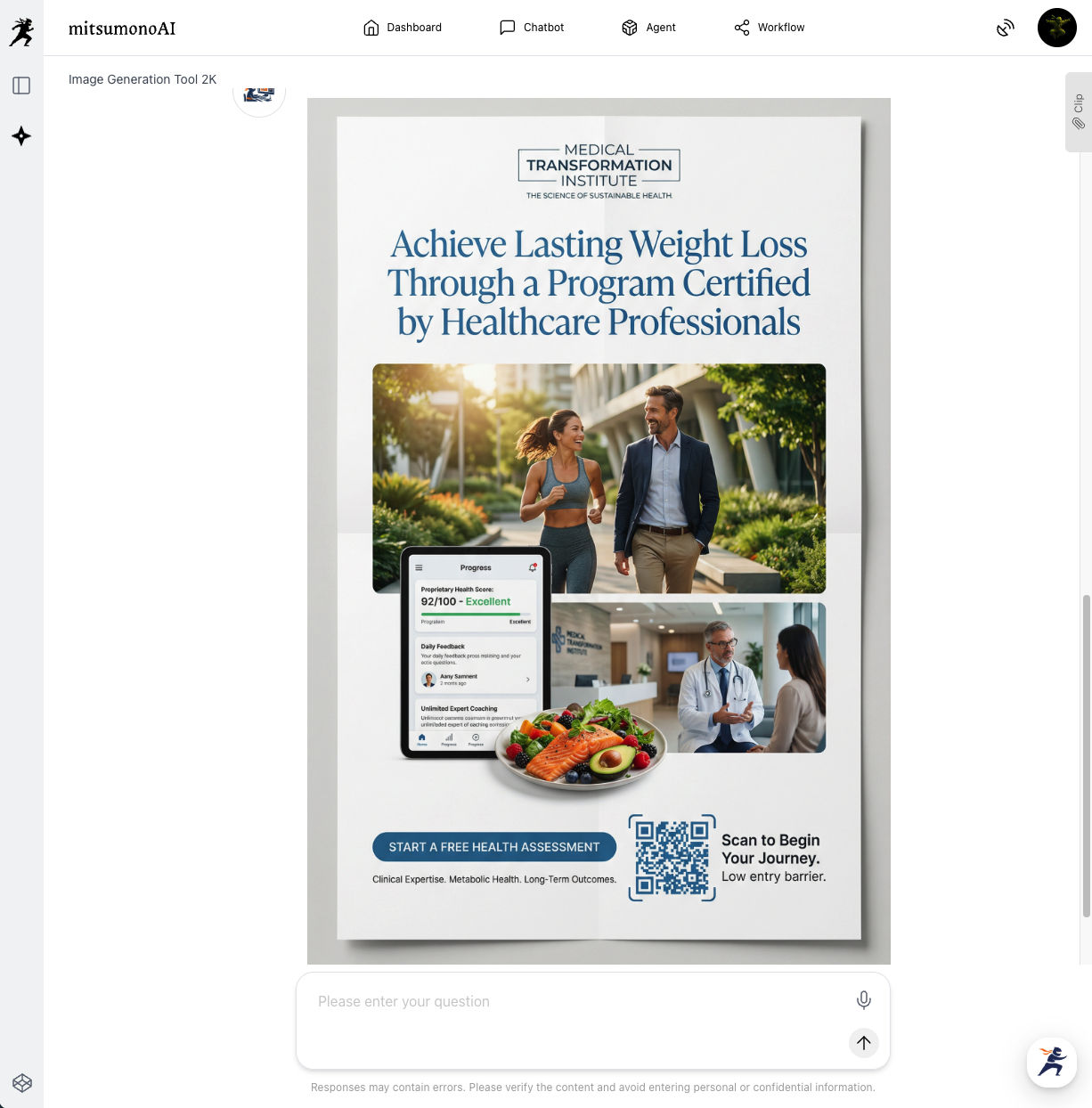
The Final Result: Professional, Gentle, and Effective
By letting the AI follow the design standards of a top-tier health site, you get a poster that feels professional yet welcoming—perfect for encouraging patients to sign up for a consultation.
Summary: Fast, Professional, and Patient-Friendly
This workflow is perfect for clinic staff who want to promote health services professionally without spending hours on graphic design.
- Step 1: Paste a professional health URL and Save to Clip.
- Step 2: Copy from Clip and set only the Case, Ratio, and Text in the 2K tool.
- Step 3: Print your new POP and place it where patients can see it!
Ready to start your consultation program? Start with a professional health site URL today and create visuals that inspire your patients to lead a healthier life!
Production reference example