Aligning Dreams: Using AI Mood Boards for Flawless Home Consultations
Bridge the gap between vague customer requests and clear visual reality. Learn how to use AI during sales meetings to create instant "Lifestyle Mood Boards" that ensure a perfect hand-off to your design team.


The most difficult part of a custom home consultation is accurately sharing the "ideal image" inside the customer's head. Phrases like "natural but slightly modern" or "warm yet minimalist" mean different things to different people. This gap in understanding often leads to disappointment during the design phase.
Until now, sales staff had to flip through hundreds of catalog pages to find a similar photo. In this article, we will explain a workflow to use AI as a "Mood Board" tool to instantly visualize a customer's lifestyle preferences, ensuring a perfect hand-off to the architectural team.
What You Will Learn in This Article
- How to translate a customer’s vague words into a structured design brief.
- How to generate a "Lifestyle Mood Board" on the spot using the Clip function.
- How to improve communication between sales, customers, and architects.
STEP 1: Translate "Words" into "Instructions"
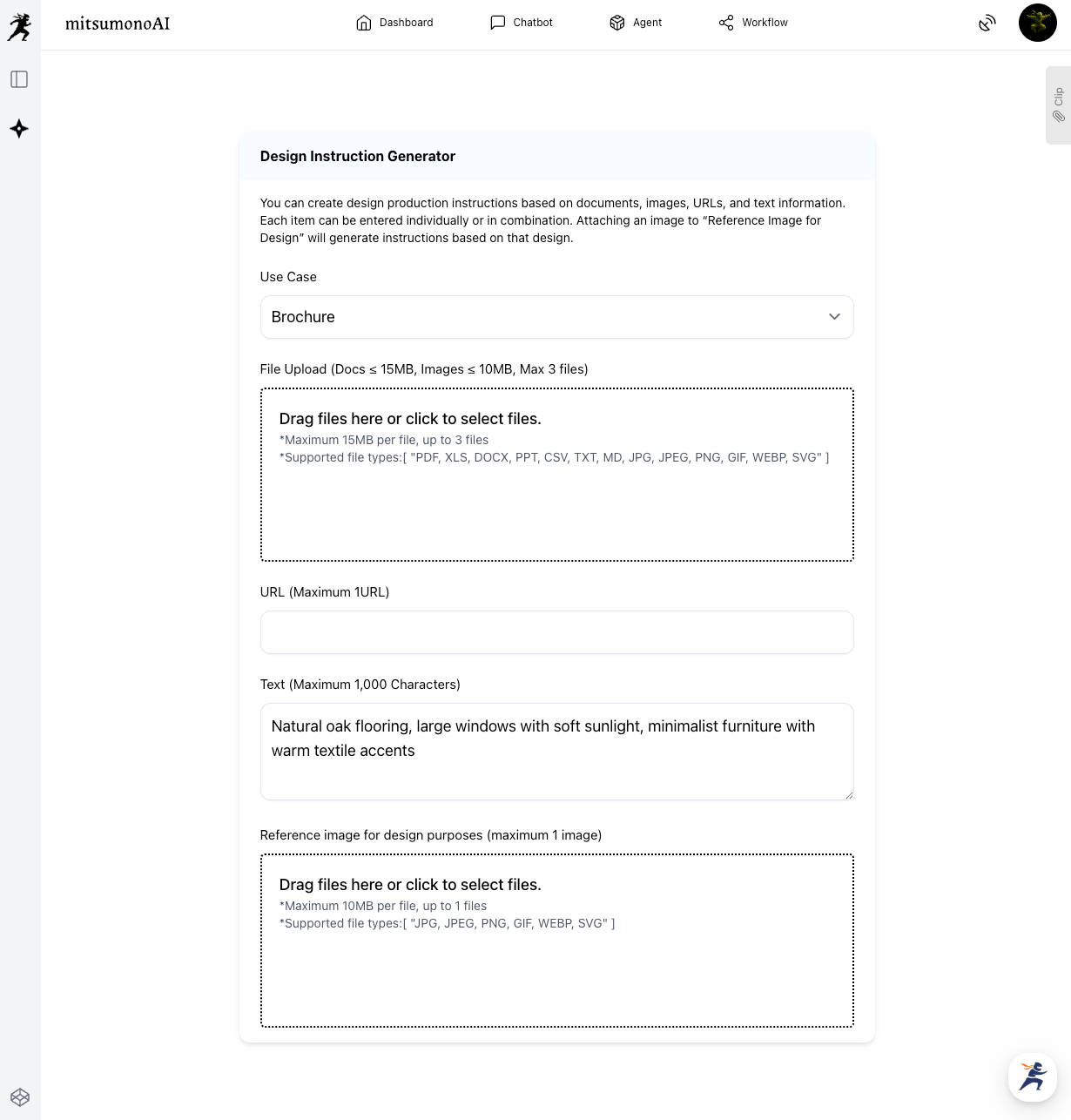
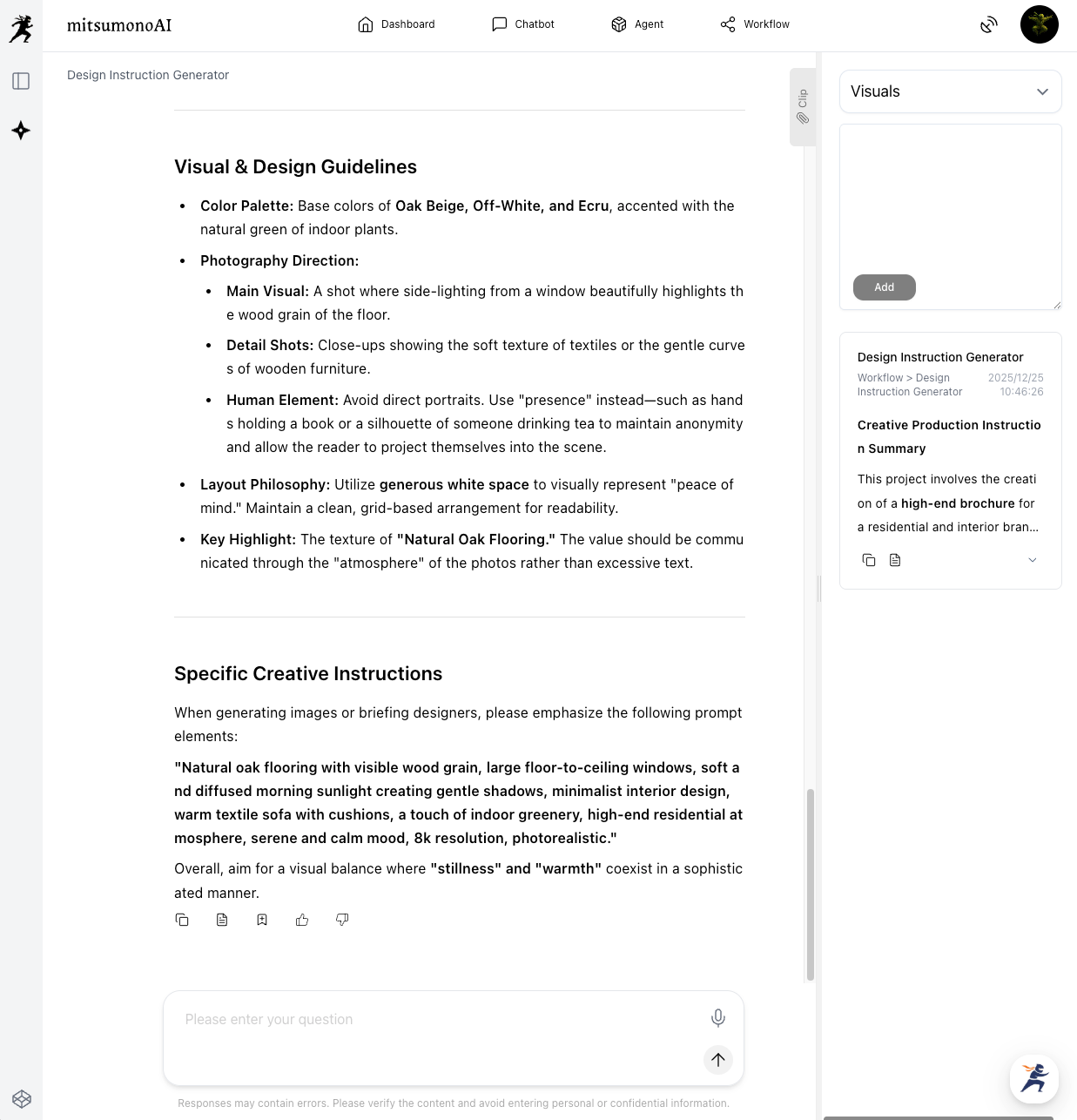
During the meeting, use the Design Instruction Generator to convert the customer's verbal descriptions into a visual strategy.
How to do it:
- Select Use Case: Choose [others] or [Brochure].
- Input Text: In the "Text" box, type the customer’s specific keywords (e.g., "Natural oak flooring, large windows with soft sunlight, minimalist furniture with warm textile accents").
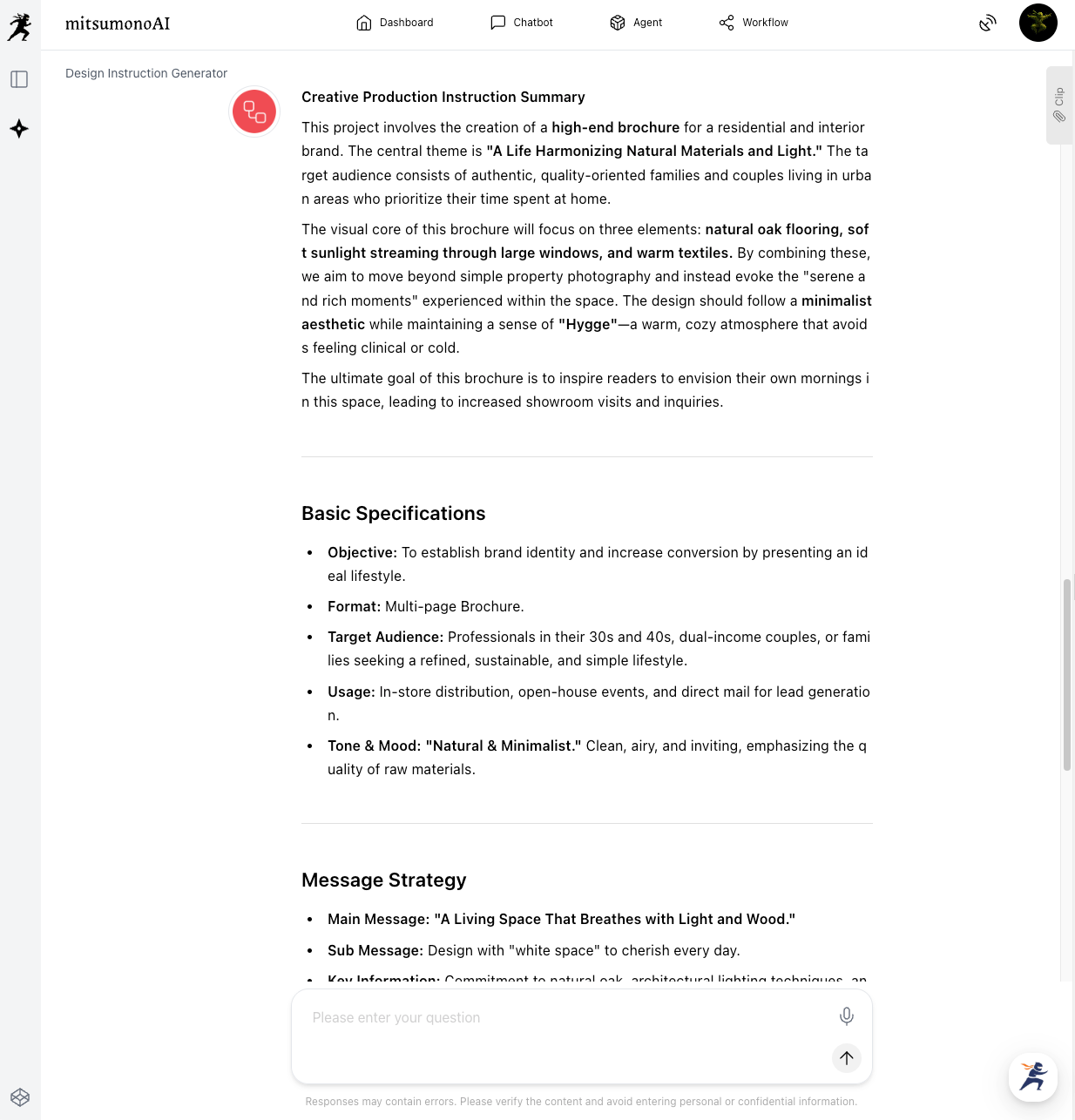
- Generate: The AI will create a "Creative Production Brief" that defines the color palette, lighting, and textures that match the customer's words.
Saving to Your Clip
Once the brief is generated, click the "Save to Clip" button located directly below the result. This allows you to keep the conversation flowing without pausing to copy and paste.
⚠️ Note: To ensure accuracy, show the brief to the customer and ask, "Does this description feel right?" You can edit the text on the spot to refine the instructions based on their feedback before saving it to your Clip.
STEP 2: Visualize the Mood in 3 Simple Steps
Now, switch to the Image Generation Tool 2K to create the visual mood board.
The 3-Item Workflow:
- Use Case: Select [DesignPoster & Flyer].
- Ratio: Select Landscape (16:9) or Wide (21:9) to show a broad view of the interior atmosphere.
- Image Generation Text: Click the "Copy" button from your Clip and paste the text into the box.
Important: There is no need to set "Style" or "Main Character." The AI uses the detailed brief you created from the customer's own words!
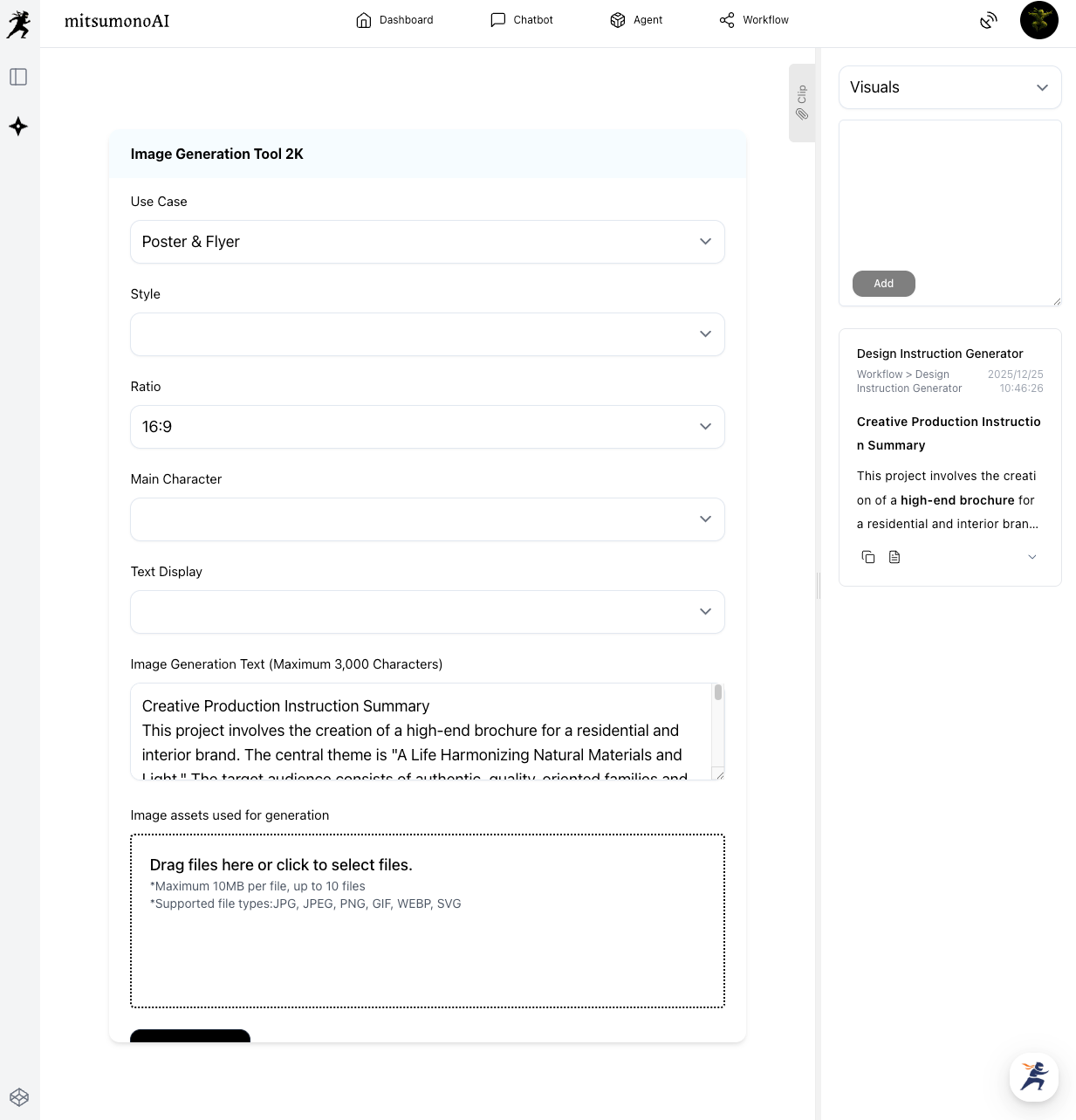
⚠️ Warning: The text box has a 3,000-character limit. If the brief from Step 1 is too long, please summarize it to keep only the most important visual elements the customer mentioned.
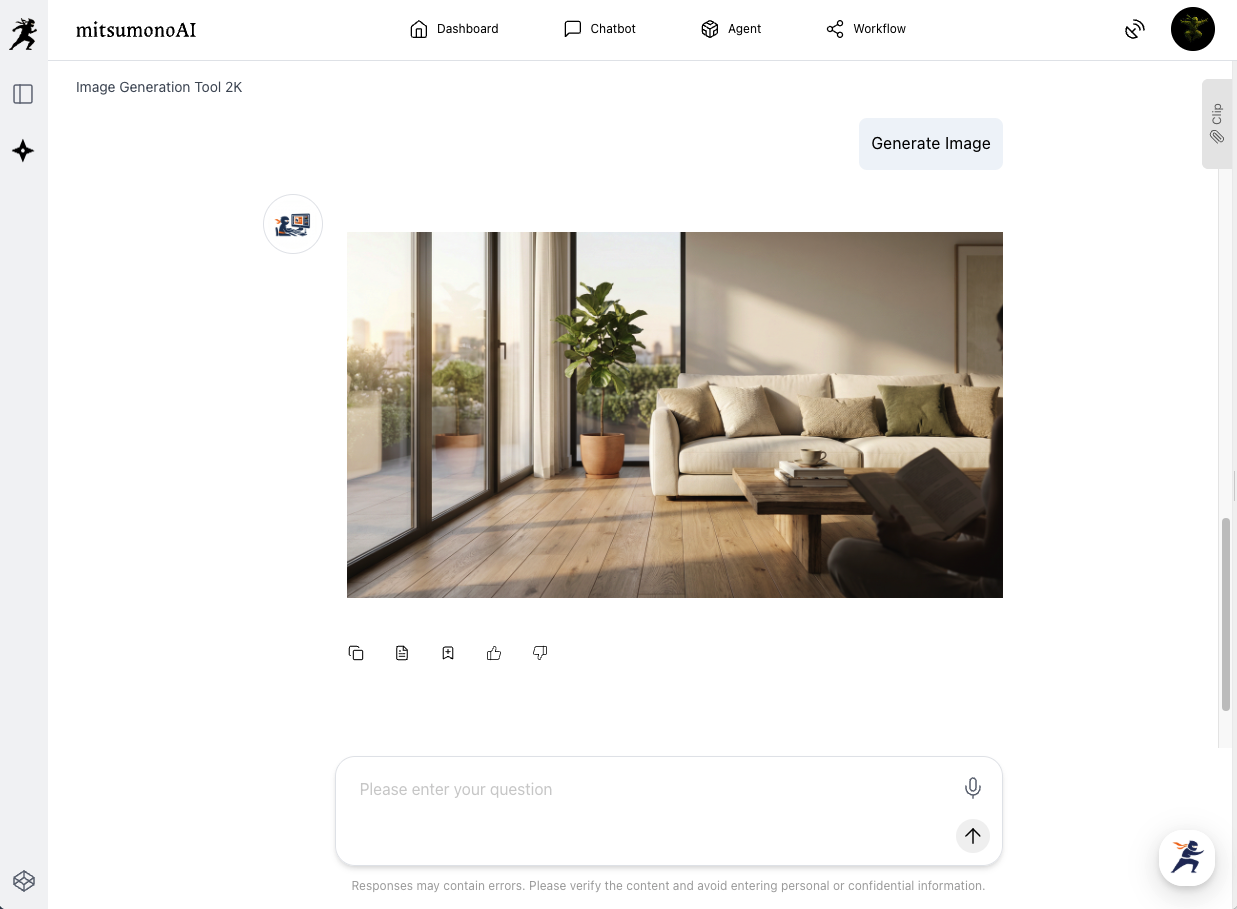
The Final Result: A Shared Vision for the Design Team
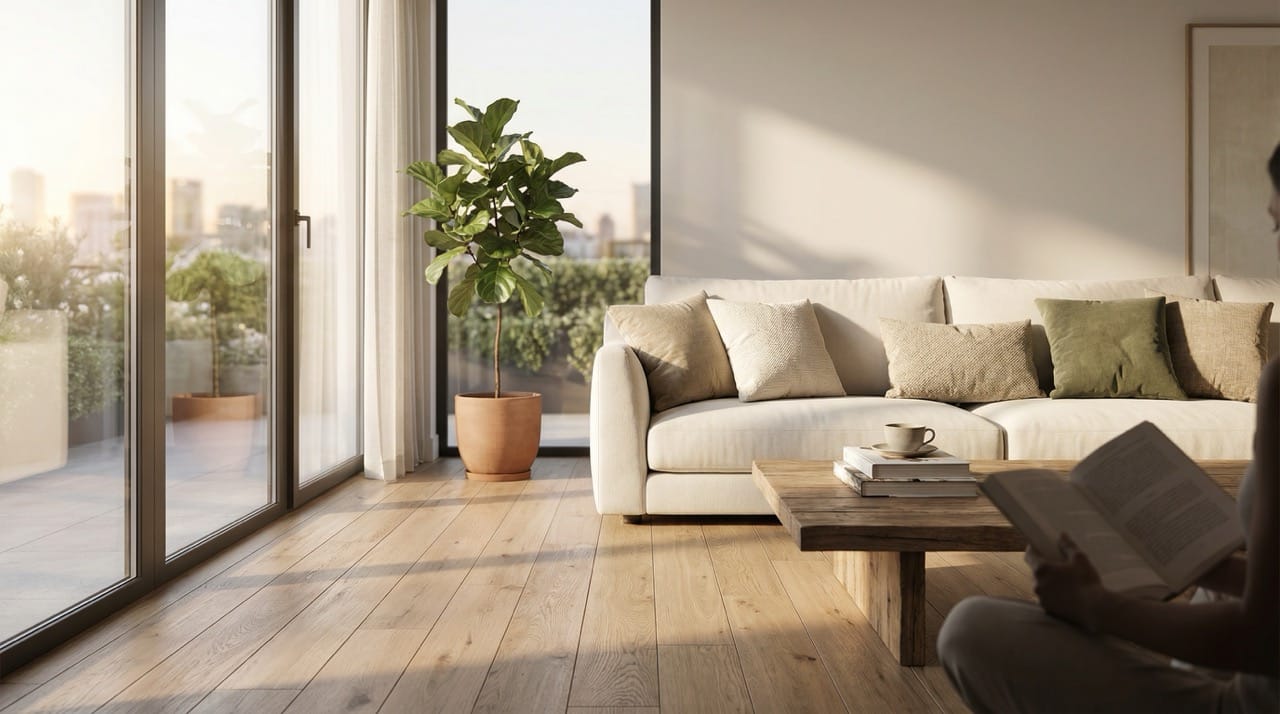
The result is a high-quality "Lifestyle Image" that serves as a visual bridge. By showing this to the architect, you can say, "This is the 'Natural Modern' vibe the customer is looking for," preventing any future misunderstandings.
Summary: Smoother Consultations, Happier Customers
Using AI as a mood board during the sales process transforms "vague words" into "concrete vision," making the home-building journey much more exciting and accurate for your clients.
- Step 1: Input the customer's words and Save to Clip in one click.
- Step 2: Copy from Clip and set the Ratio to visualize the dream lifestyle.
- Step 3: Use this image as a "Mood Board" to guide the architectural design team.
Ready to align your visions?
Use this workflow in your next consultation to ensure that "Natural but Modern" means exactly the same thing to everyone!
Always explain to the customer that these AI-generated images are for "Lifestyle Inspiration" and "Mood Sharing" only. They are not structural blueprints or a guarantee of the final construction. Using them as a communication tool helps build trust and ensures the design team starts on the right track.
Production reference example