One-Click Table POPs: Turning Your Menu Descriptions into Instant Sales
Boost your restaurant's upselling potential with professional table POPs. Learn how to transform your online menu into elegant, mouth-watering daily specials in just minutes using AI.
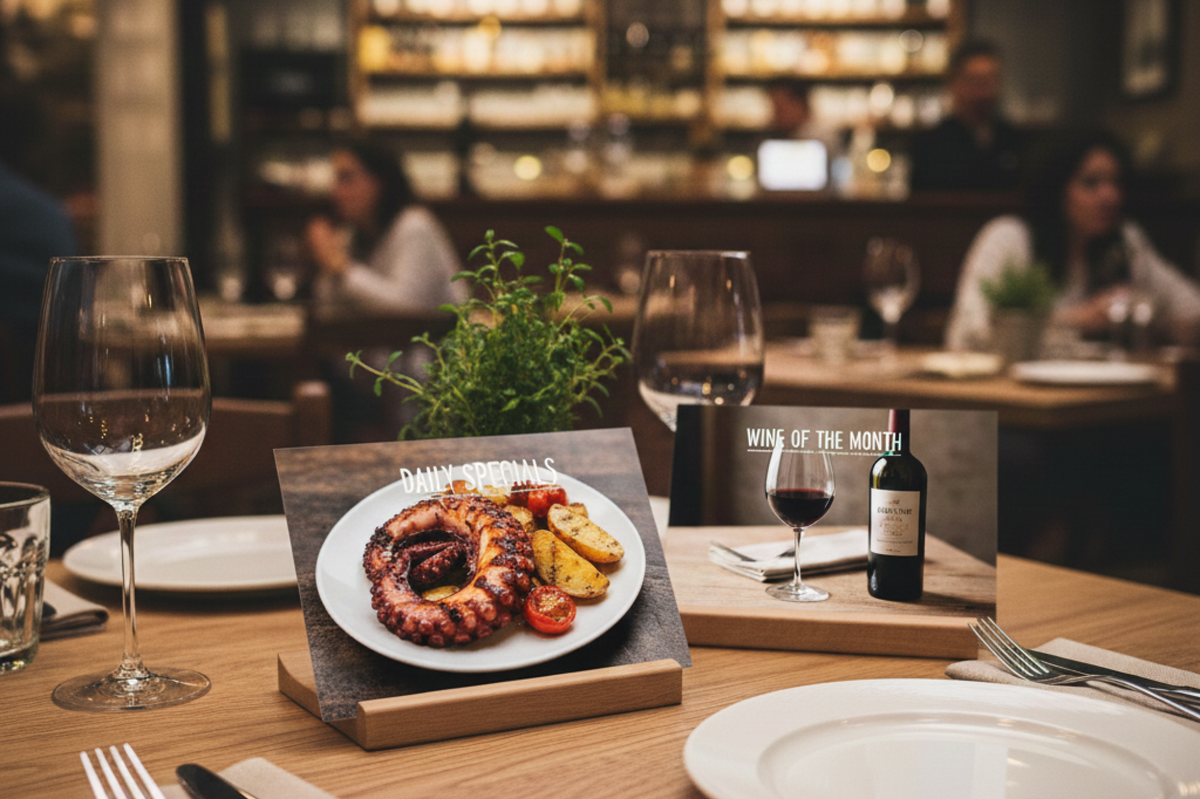
For restaurant owners and trattoria managers, updating "Daily Specials" or "Wine of the Month" can be a hassle. You want to tempt guests with a beautiful display on their table, but you don't have the time to design new graphics every day.
By using the menu descriptions from a high-end site, we will show you how to create an elegant table POP that encourages guests to order that extra glass of wine or a signature dessert.
What You Will Learn in This Article
- How to convert your website's culinary descriptions into a design brief.
- How to generate a stylish POP using the "Clip" function for a 3-item workflow.
STEP 1: Generate Design Instructions from Your Menu
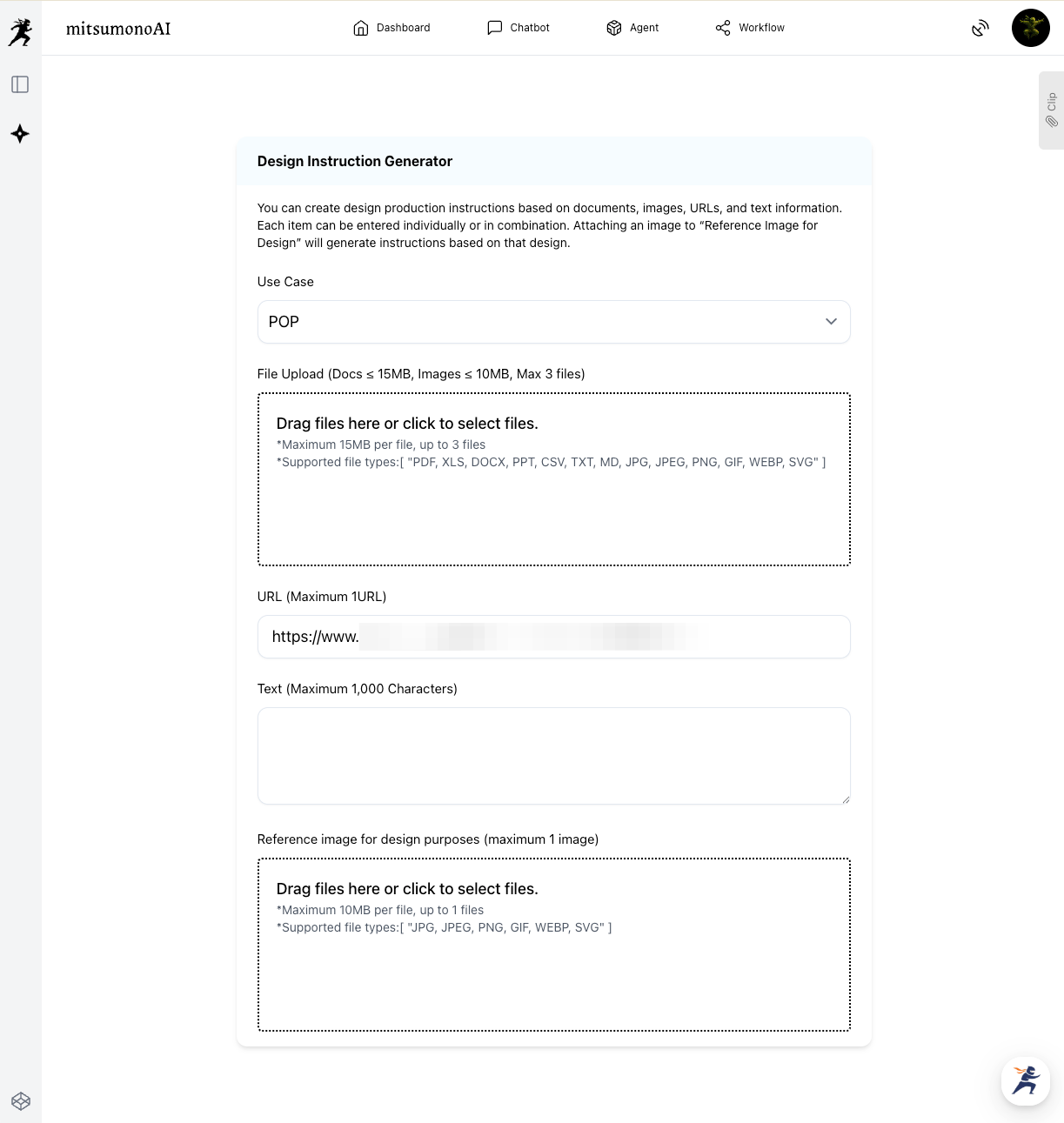
First, we use the Design Instruction Generator to translate your menu's flavors into a visual strategy.
How to do it:
- Select Use Case: Choose [POP].
- Paste the URL: Use your restaurant's menu page .
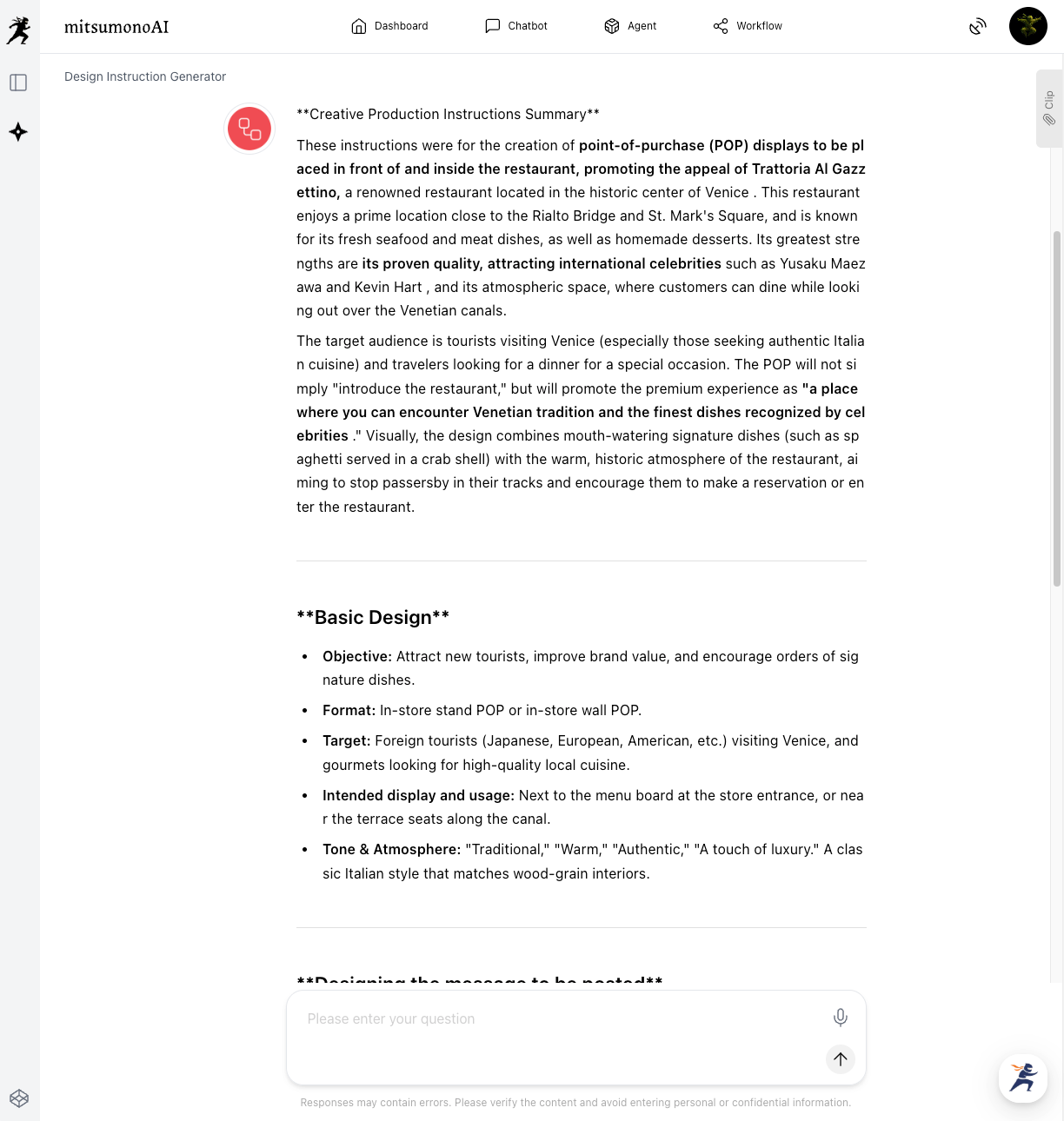
- Generate: The AI analyzes the sophisticated Venetian atmosphere and the gourmet details of the dishes.
Saving to Your Clip
Once your "Creative Production Brief" is ready, you don't need to copy it manually. Simply click the "Save to Clip" button located directly below the generated text. This stores the entire design strategy with one click.
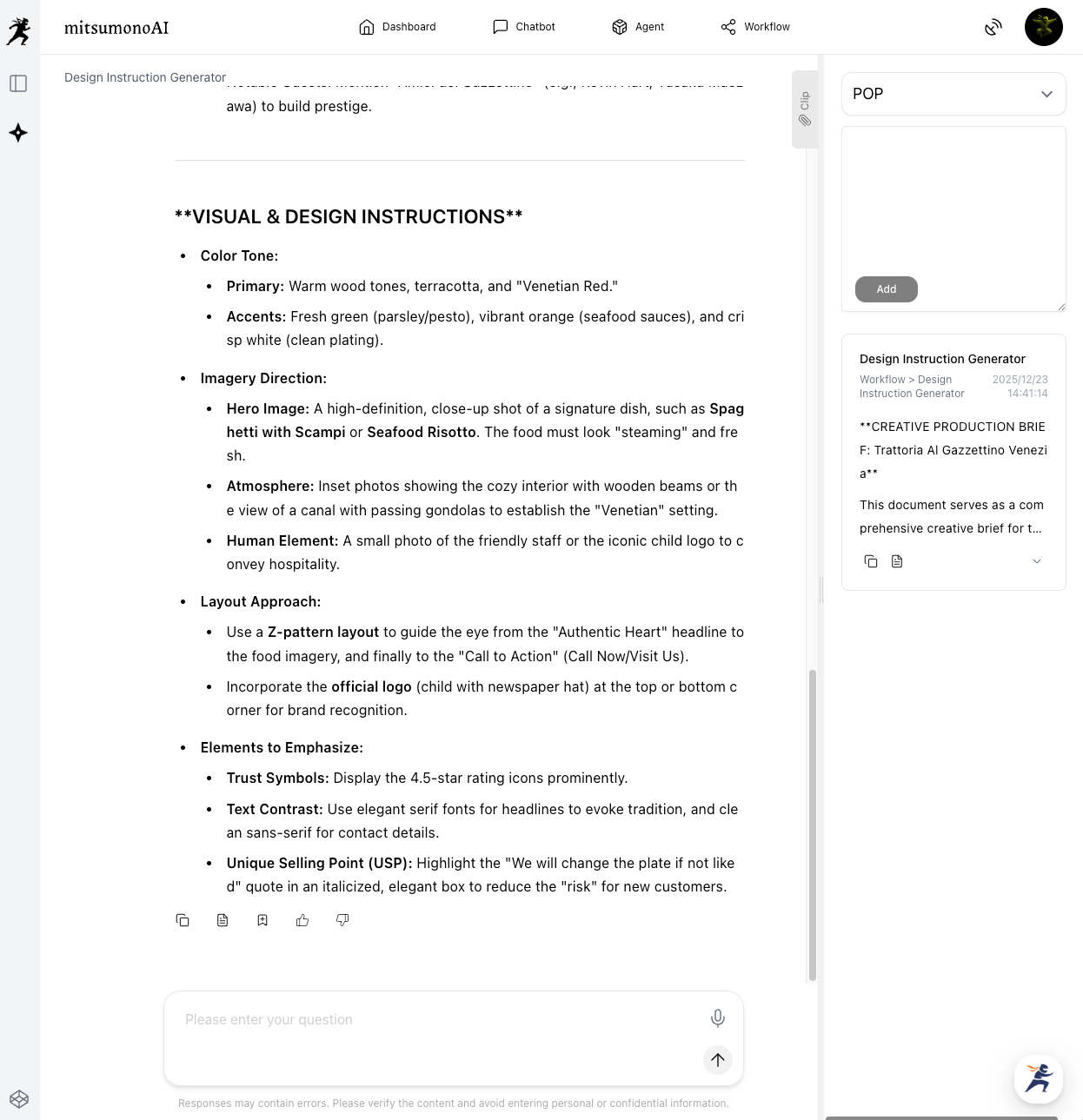
⚠️ Note: You can edit or refine the generated instructions to include specific pricing or today's date before saving to your Clip to ensure the POP is perfectly tailored to your needs.
STEP 2: Create the POP in 3 Simple Steps
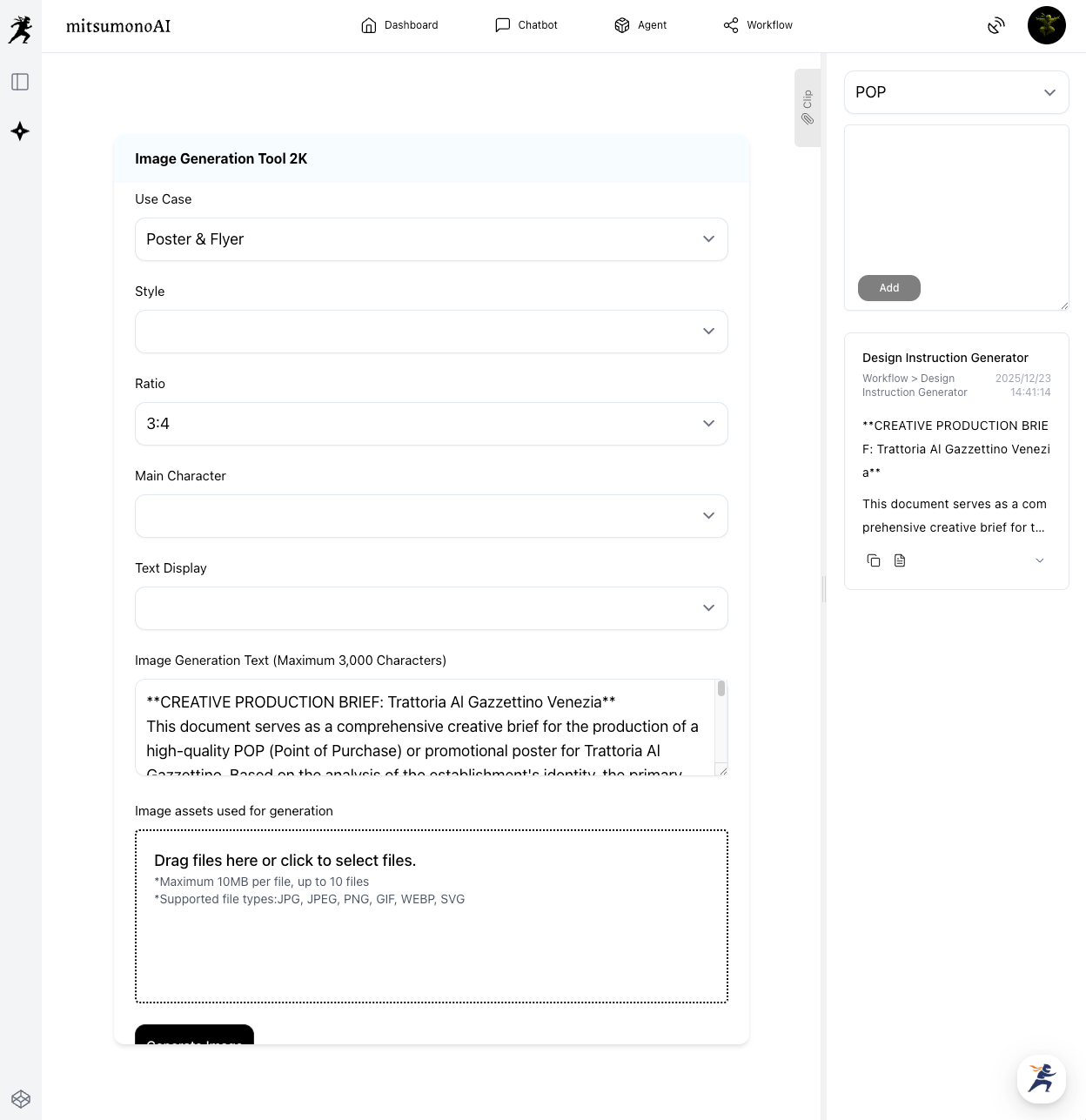
Now, open the Image Generation Tool 2K. Since your instructions are already in your Clip, the process is streamlined into just three items.
The 3-Item Workflow:
- Use Case: Select [Poster & Flyer].
- Ratio: Choose 3:4 or 2:3, which are ideal for standing table tents.
- Image Generation Text: Click the "Copy" button in your saved Clip section and paste the text into this box.
⚠️ Important Note on Character Limits:
The text box has a maximum limit of 3,000 characters. If your generated brief from Step 1 is very long, please summarize or edit the text to ensure the most important visual and menu details are included within the limit.
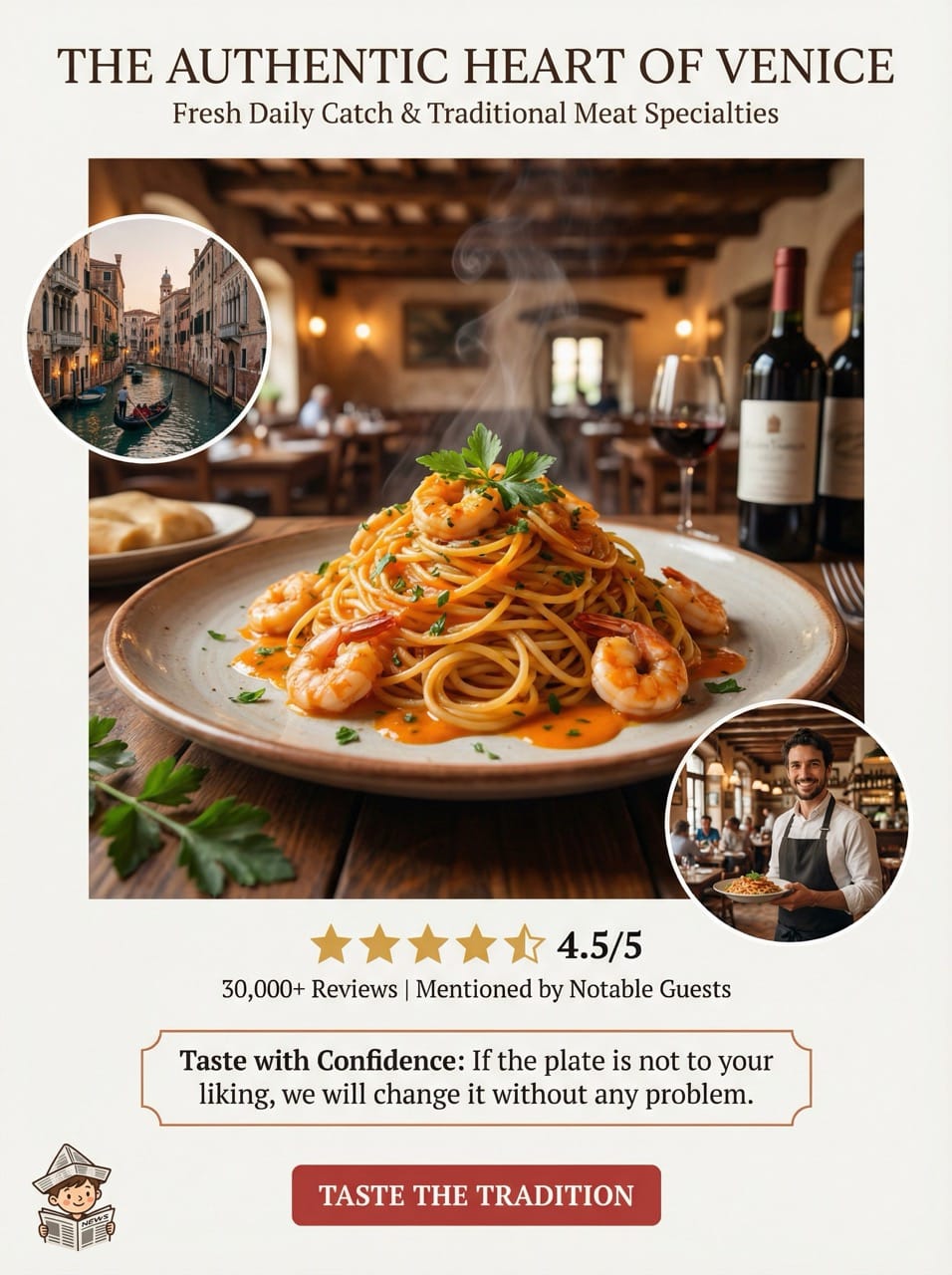
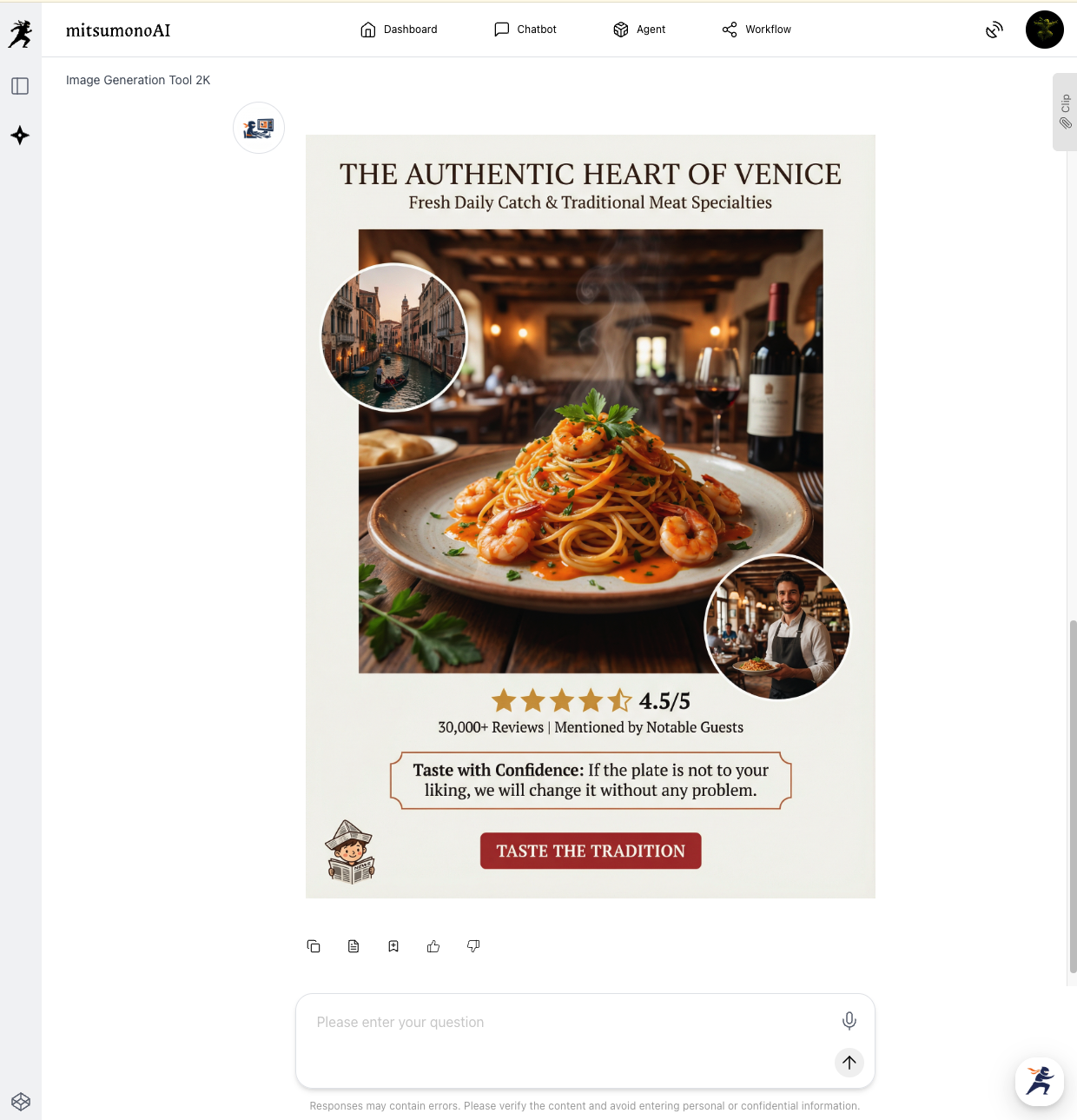
The Final Result: A High-End "Table-Ready" Visual
By extracting the "sizzle" from your website’s descriptions, the AI creates a professional POP that matches the elegant atmosphere of your dining room. It’s designed to catch the eye and trigger an immediate "I want that" reaction from your guests.
Summary: Fast, Professional Menu Updates
This workflow is perfect for busy restaurant staff who want to increase their average check size through visual upselling.
- Step 1: Paste your menu URL and Save to Clip in one click.
- Step 2: Copy from Clip and set only the Case, Ratio, and Text in the 2K tool.
- Step 3: Print your high-end POP and place it on the tables!
Ready to boost your restaurant's sales?
Take your menu URL today and start creating POPs that make your guests' mouths water!
Production reference example