Stylish SNS Posts in Minutes: A Guide for Salon Managers
Want to post stylish Instagram updates but lack design skills? Learn how to turn your salon's URL and a reference image into professional campaign banners effortlessly.

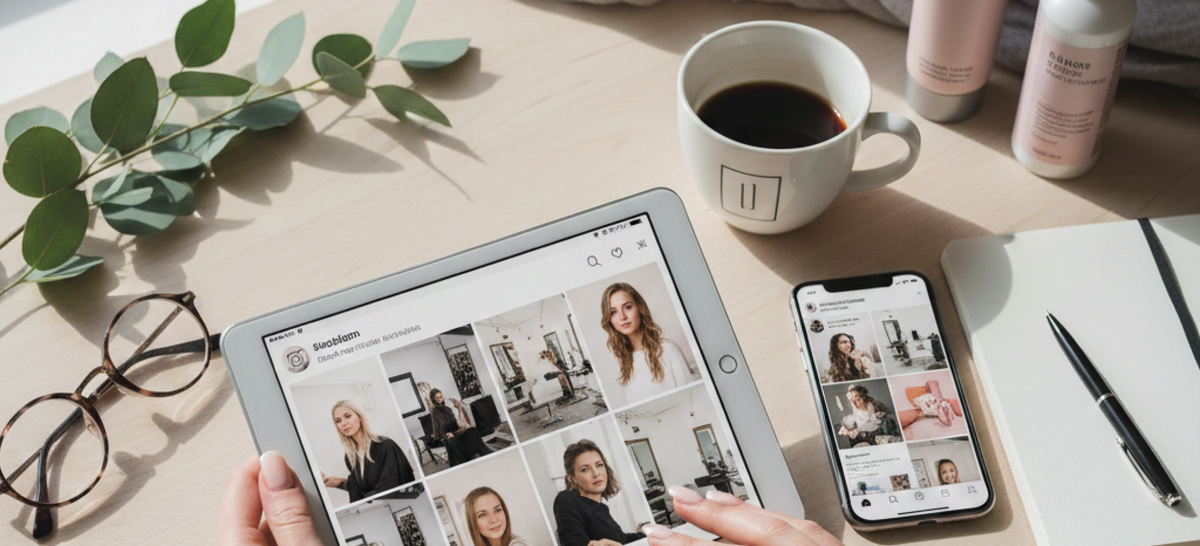
"I want to announce our new seasonal campaign on Instagram, but I'm not a designer..."
"I want to post something stylish that matches our salon's brand, but I don't have the time to learn complex editing tools."
Do these thoughts sound familiar? For salon managers and receptionists, keeping a social media feed looking premium is a constant struggle. You have the beautiful salon and the great service, but translating that into a "gram-worthy" banner is hard.
In this guide, we’ll show you how to use a Premium London Salon's website and a simple reference image to create professional SNS posts in just a few clicks.
What You Will Learn in This Article
- How to generate a design brief by combining your website URL and a reference image.
- How to use the "Clip" function to save and transfer instructions instantly.
- The 3-step workflow to generate high-quality images.
STEP 1: Create Your Design Strategy with the "Brain" Tool
First, we use the Design Instruction Generator. This tool acts as your creative director. It analyzes your website to understand your brand and combines it with the "look" you want.
How to do it:
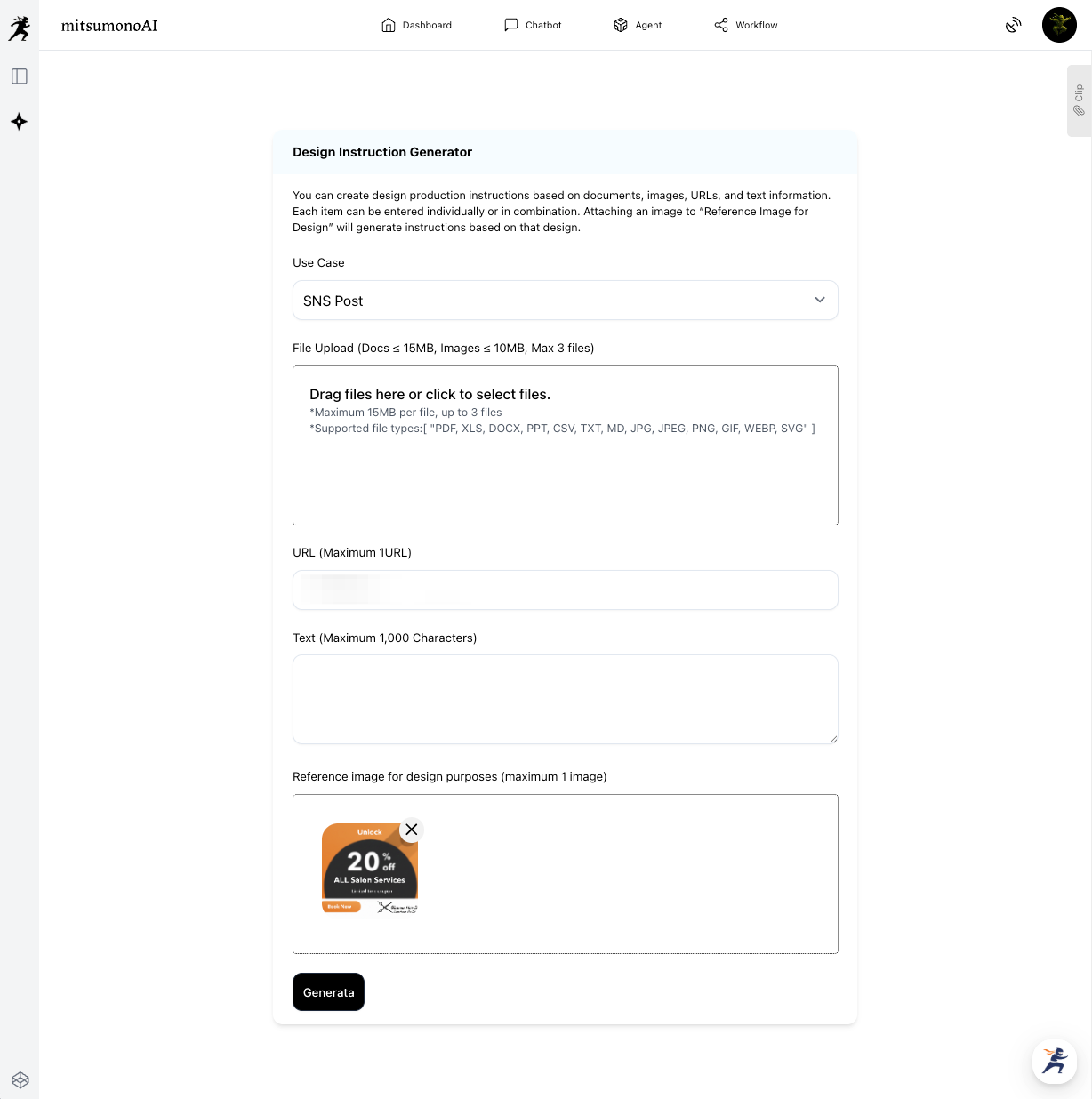
- Select Use Case: Choose [SNS Post].
- Paste the URL: Use your salon's official website or a specific service page.
- Attach an Image: Upload an image that represents the style you want (e.g., a photo with a specific filter or layout you admire) into the "Reference image for design purposes" box.
- Generate: The AI will create a detailed design brief that merges your brand identity with your desired style.
Saving to Your Clip
Once the instructions are generated, click the "Save to Clip" button located directly below the result. This stores the brief in your account so you can access it instantly in the next step.
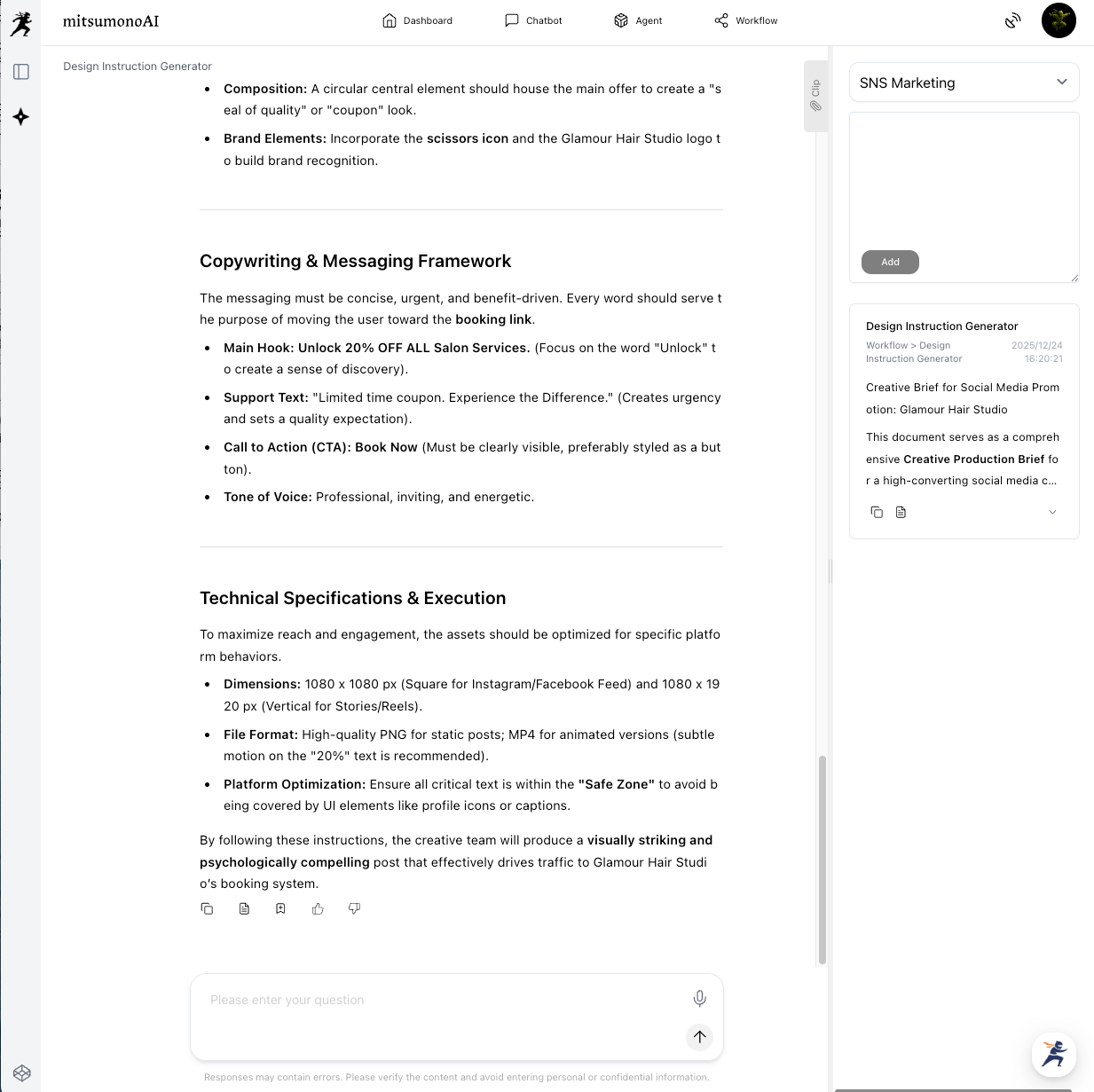
⚠️ Note: You can edit the generated instructions to better suit your needs. If the text is very long, feel free to summarize it, as the next tool has a 3,000-character limit.
STEP 2: Generate the Post with a Simple Workflow
Now, open the Image Generation Tool 2K. Since your instructions are saved in your Clip, you don't need to be a design expert.
The 3-Item Workflow:
- Use Case: Select [SNS Post].
- Ratio: Select 1:1 (Square) for your main feed or 9:16 (Vertical) for Stories.
- Image Generation Text: Click the "Copy" button from your saved Clip and paste the text into the box.
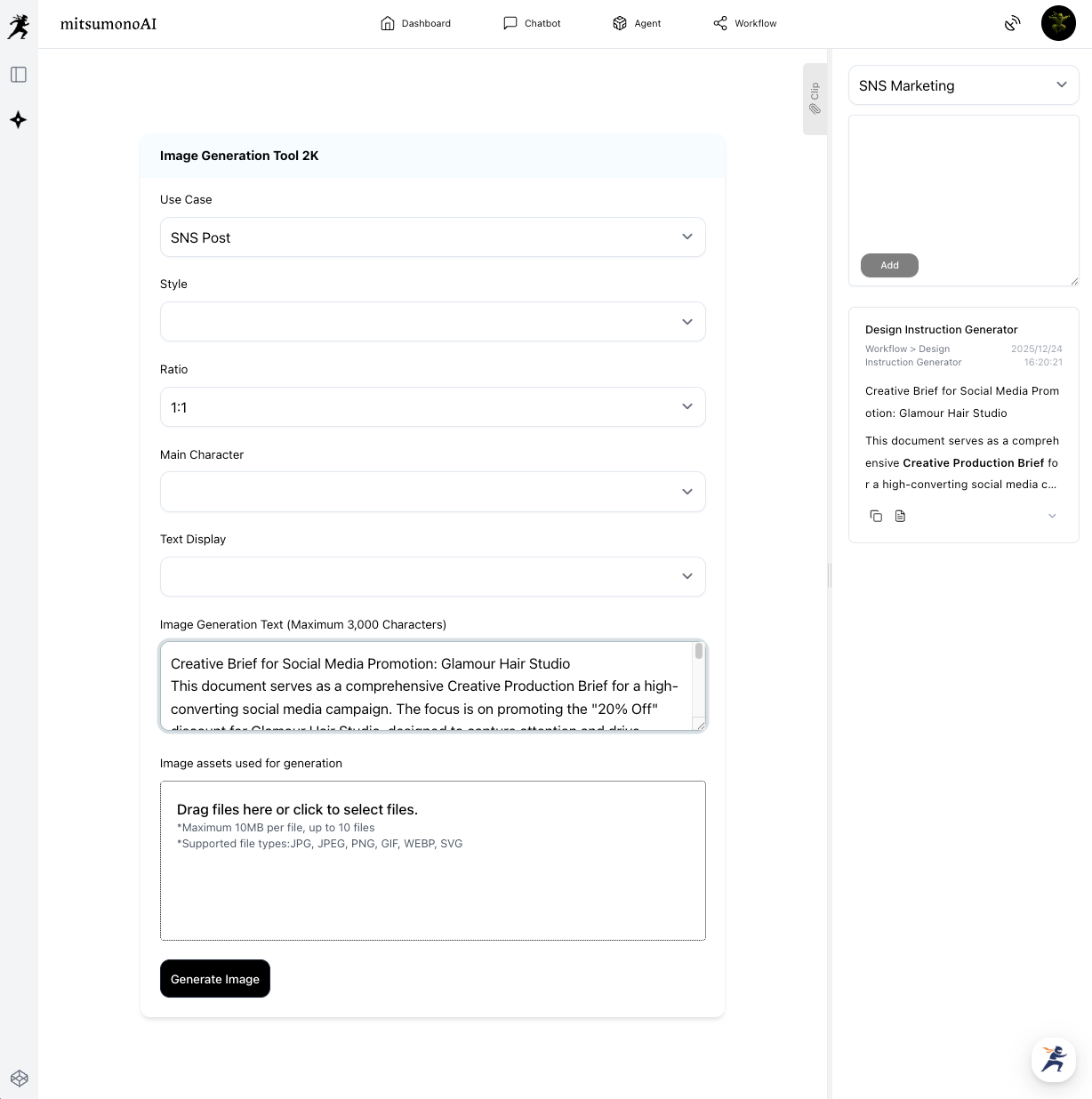
⚠️ Important: The text box has a maximum limit of 3,000 characters. If your clipped brief is too long, please summarize it before pasting to ensure the AI focuses on the most important visual details.
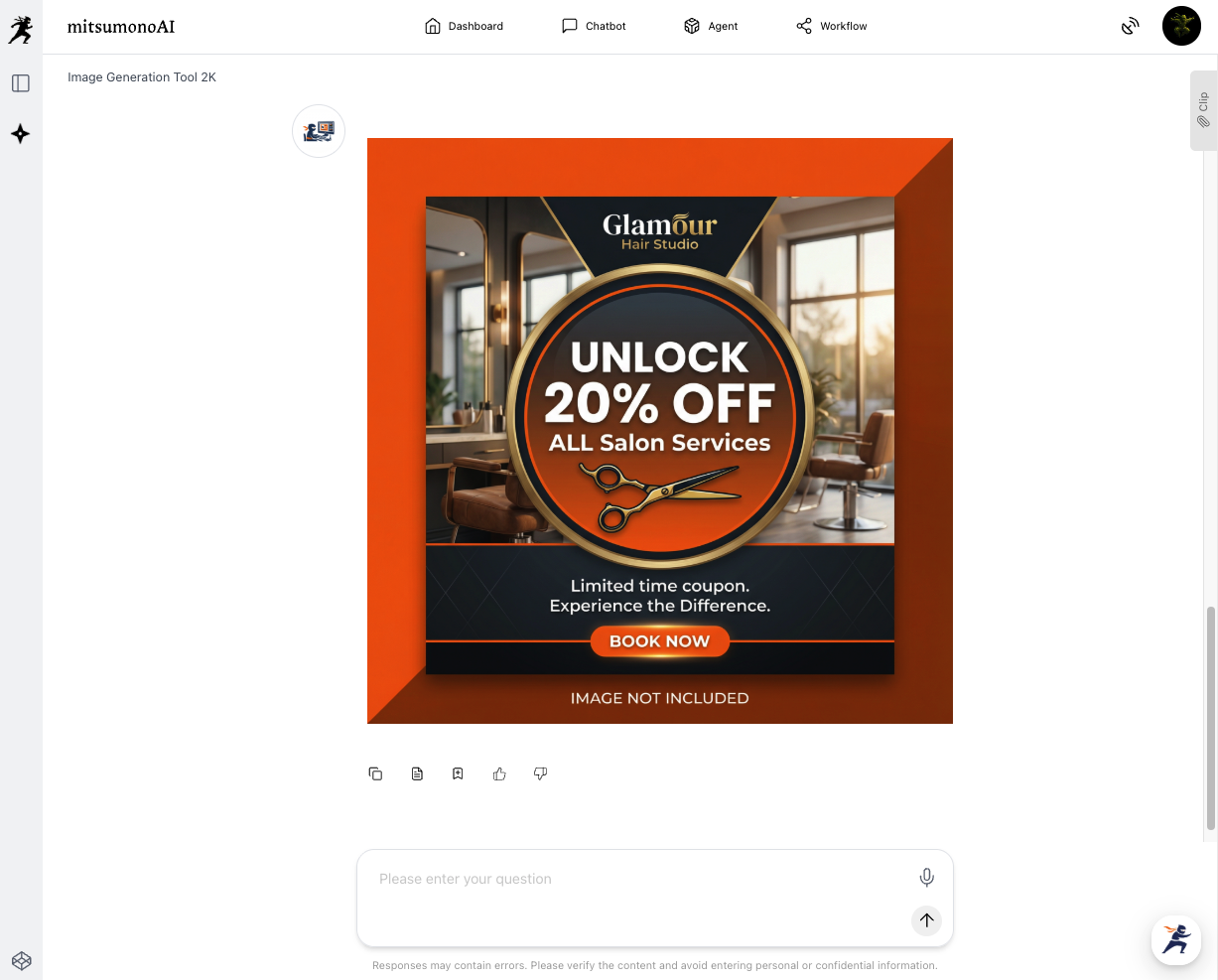
The Final Result: A Professional "Insta-Ready" Post
By letting the AI read your salon's sophisticated atmosphere and your chosen style, you get a post that feels premium and on-brand without the high cost of a designer.
Summary: Fast, Professional, and Stress-Free
This workflow is perfect for salon staff who need to keep their SNS feed fresh and high-quality without the headache of design work.
- Step 1: Paste your URL + Style Image, then Save to Clip.
- Step 2: Copy from Clip and set only the Case, Ratio, and Text in the 2K tool.
- Step 3: Your stylish SNS post is ready to be shared!
Ready to upgrade your salon's Instagram?
Take your website URL today and start creating visuals that capture your brand's true beauty!
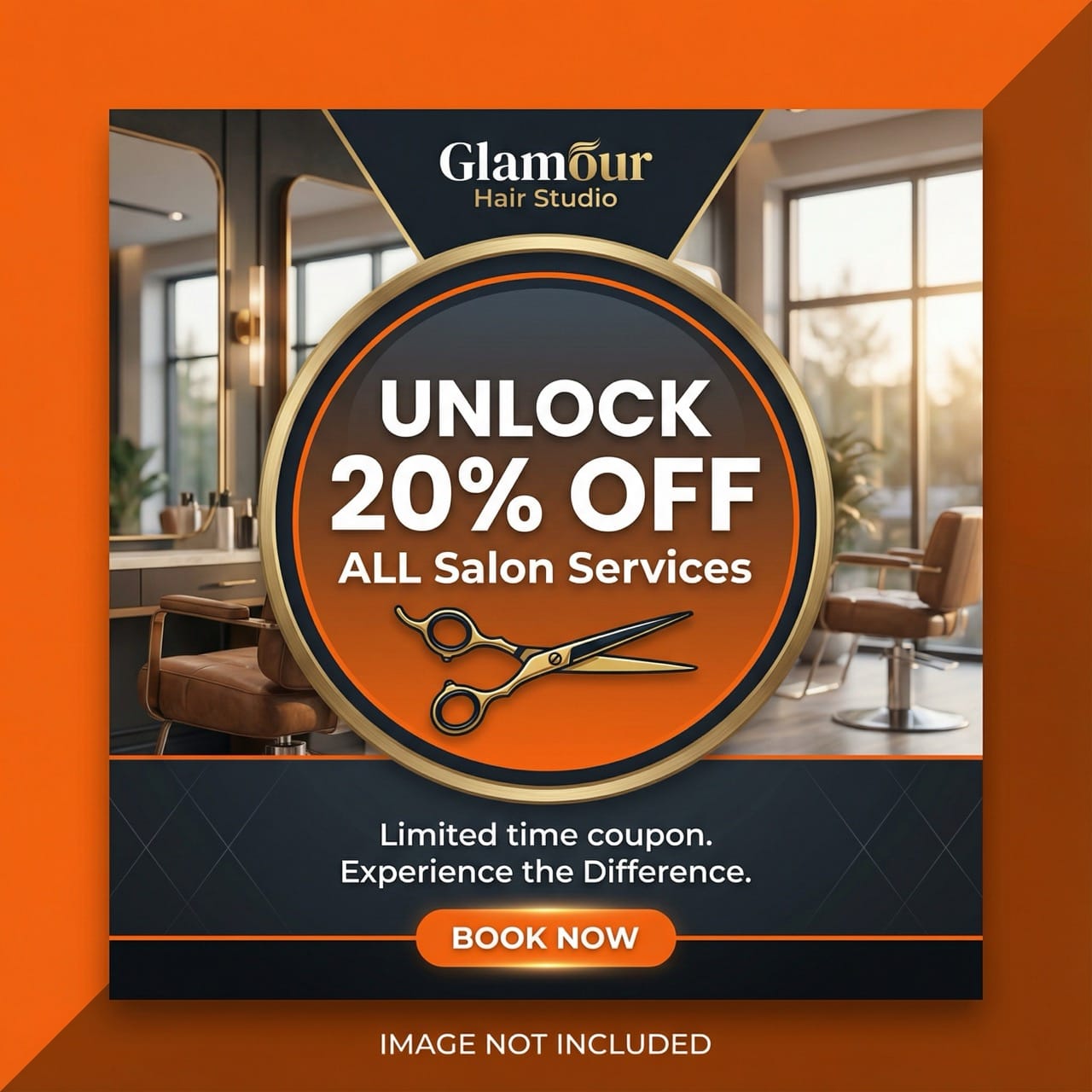
Production reference example