Capturing the Mystery: Creating High-Conversion Web Banners for Winter Tours
Learn how to visualize a "Mysterious Winter" concept for your website. This guide shows you how to turn tour descriptions into compelling web banners that drive bookings using AI.
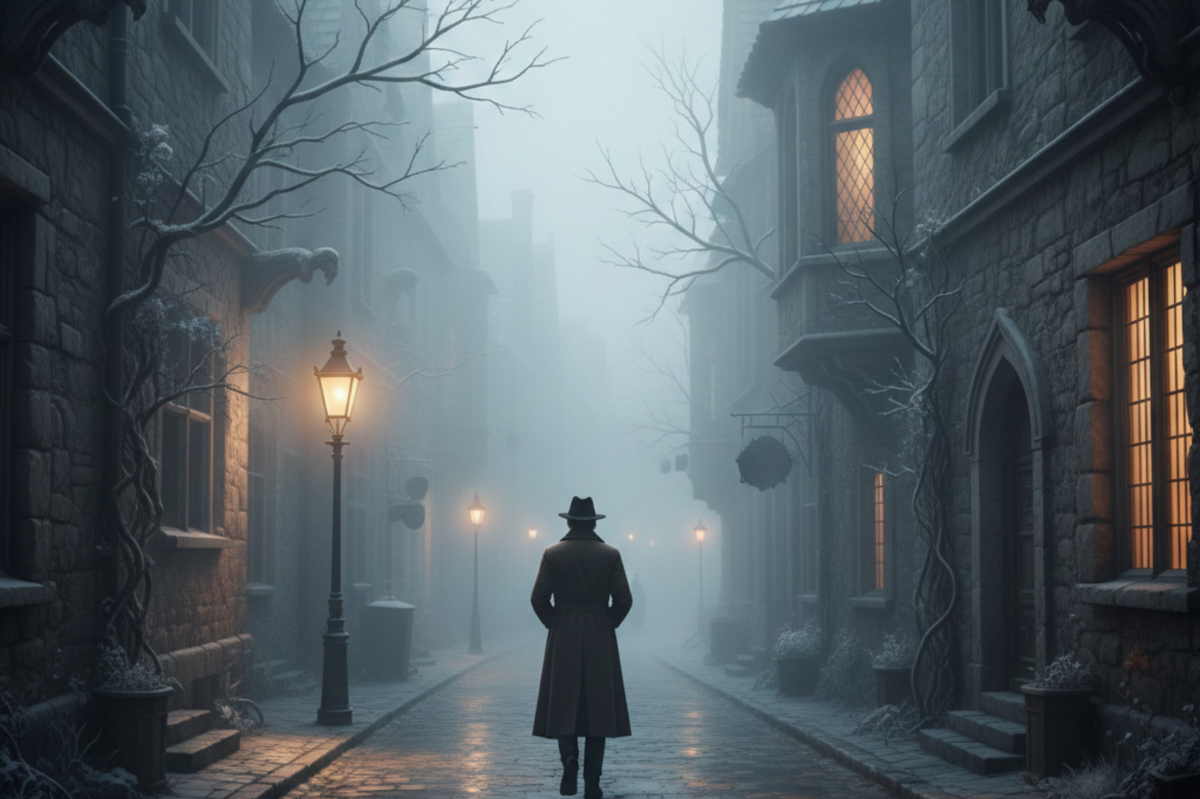
For tour operators, the challenge of the off-season is turning "cold and foggy" into "mysterious and enchanting." You want your website visitors to feel the unique atmosphere of a winter walk through ancient streets, but capturing that specific mood in a professional web banner can be difficult.
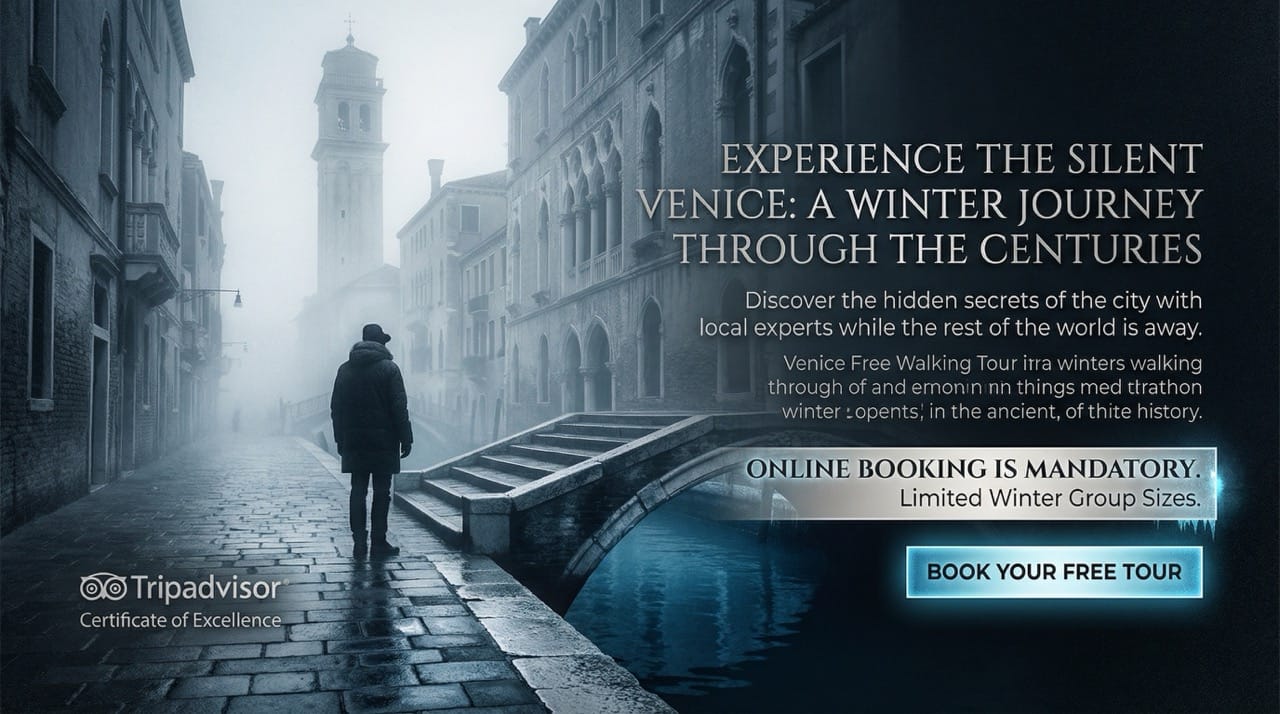
Using descriptions from a popular walking tour website, we will show you how to visualize the "Mysterious Winter" concept and create a powerful web banner with a reservation button that drives clicks.
What You Will Learn in This Article
- How to combine a website URL with a specific "visual mood" image.
- How to use the "Clip" function to save and transfer design strategies.
- How to manage text limits for optimal AI image generation.
STEP 1: Generate Design Instructions from Your Concept
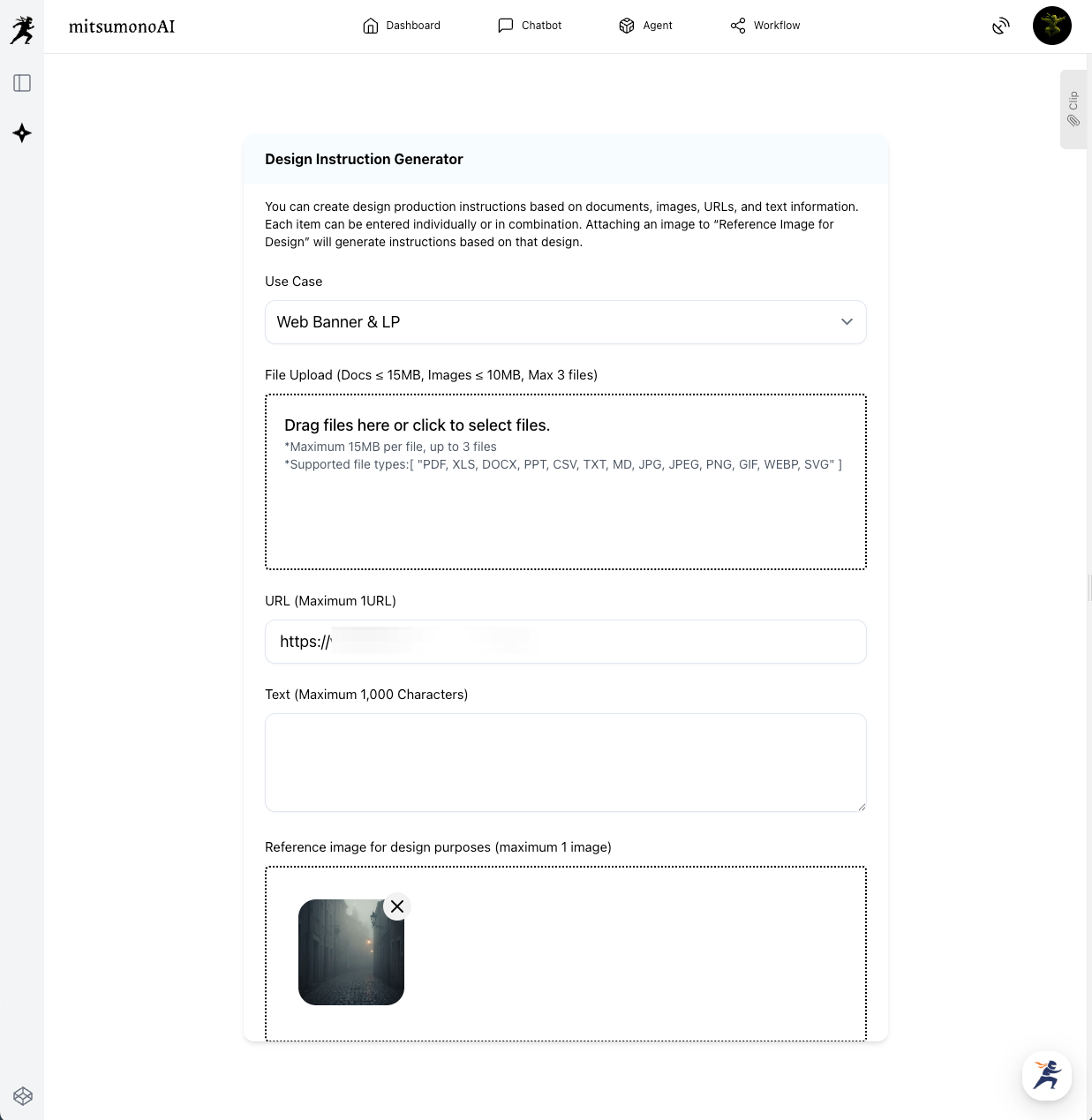
First, we use the Design Instruction Generator to define our creative strategy. To get the perfect "mysterious" look, we will provide the AI with both a URL and a visual reference.
How to do it:
- Select Use Case: Choose [Web Banner & LP].
- Paste the URL: Use the tour's official website or specific winter tour page.
- Attach an Image: Upload an image that represents the "vibe" you want—for example, a photo of a foggy, narrow alleyway or a sunset over misty water—into the "Reference image for design purposes" box.
- Generate: The AI will blend the tour’s descriptive text with the atmosphere of your attached image.
Saving to Your Clip
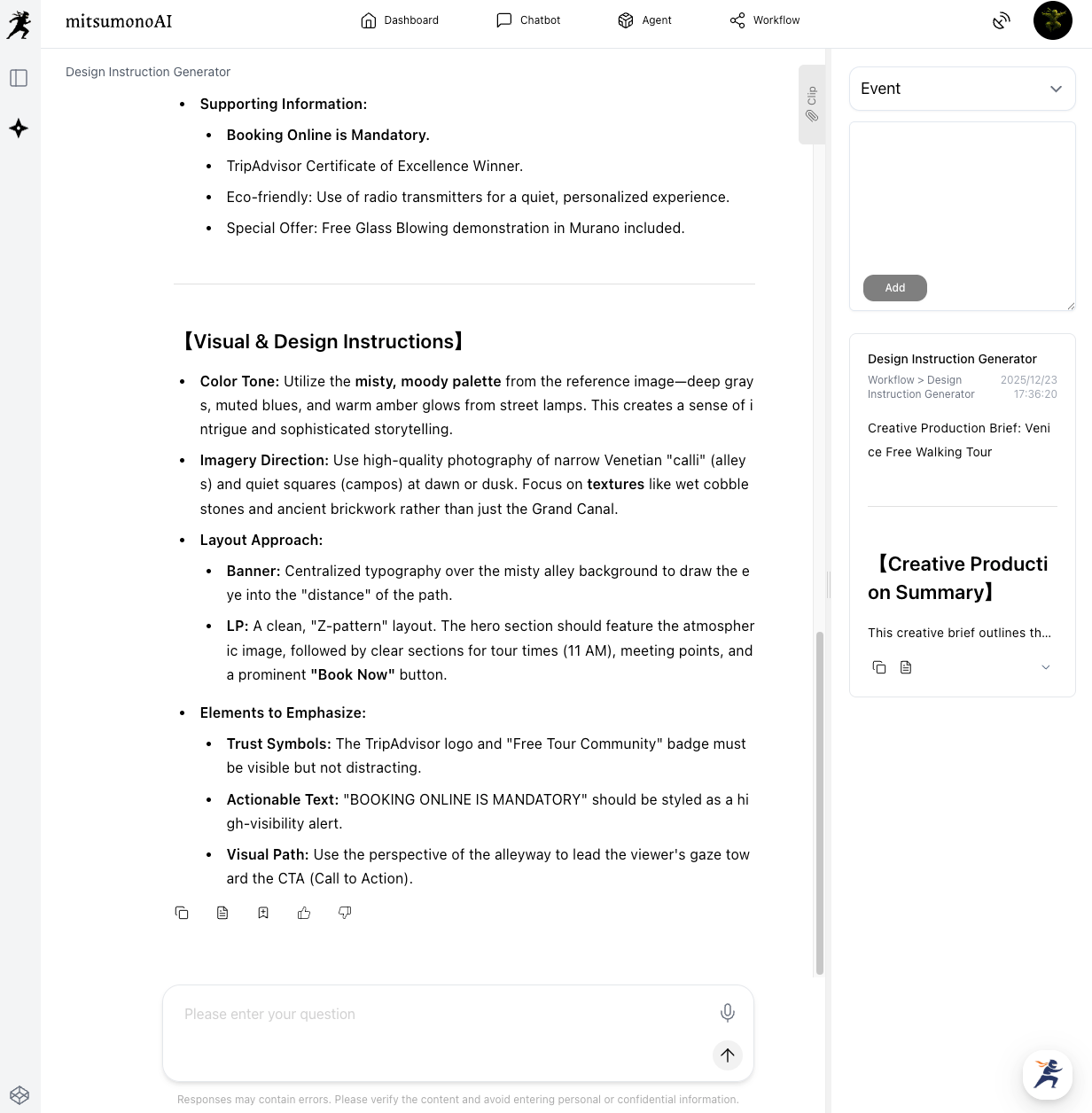
Once the instructions are generated, you can save them instantly. Click the "Save to Clip" button located directly below the generated text. This stores your entire design brief in your account with a single click.
⚠️ Note:
You can review the generated text and edit or adjust it to your specific preferences.
If the text exceeds 3,000 characters, please summarize it to ensure it fits the input limit for the next tool.
Refining Your Instructions: Examples and Prompts
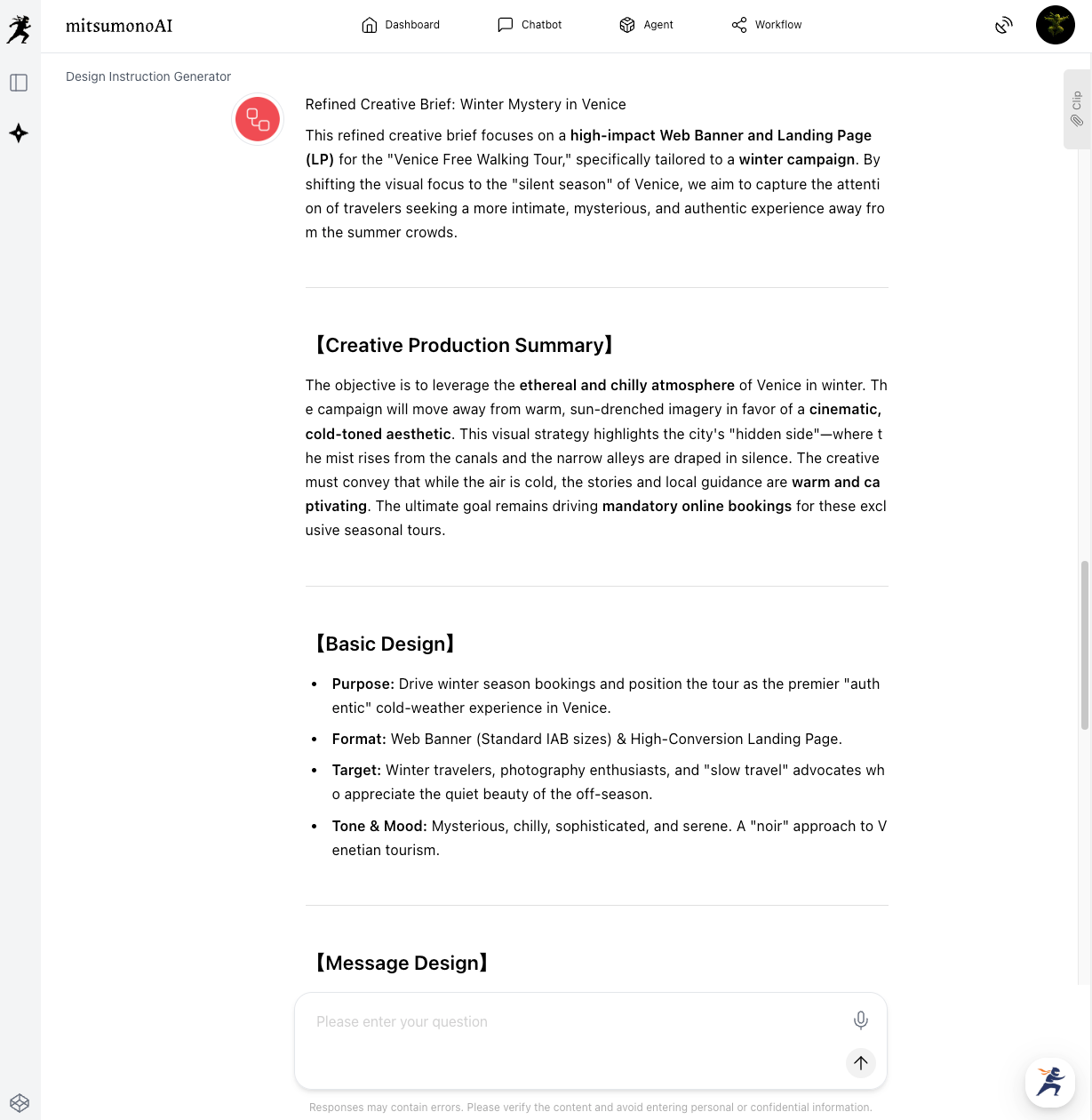
After generating the initial "Creative Production Brief" in Step 1, you might want to adjust the details to perfectly match your brand's voice. Here are common ways to refine the text, along with the English prompts you can use to tell the AI what to change.
Example : Adjusting the Color Mood
If you want to emphasize the "colder" feeling of winter.
Adjustment: Change the color palette from "warm sunset" to "icy blue and silver."
"Refine the color section to emphasize deep icy blues, silver, and cold misty grays to make the winter atmosphere feel more mysterious and chilly."
STEP 2: Generate the Banner with a 3-Item Workflow
Now, open the Image Generation Tool 2K. By using the text saved in your Clip, you can generate a professional banner in seconds.
The 3-Item Workflow:
- Use Case: Select [Web Banner & LP].
- Ratio: Choose Landscape (16:9) or Wide (21:9), which are standard for website headers.
- Image Generation Text: Paste the brief you saved in Step 1. You can copy it with a single click using the button in your Clip section.

⚠️ Important:
The text box has a limit of 3,000 characters. If your clipped brief is too long, summarize it to keep the core visual descriptions while staying under the limit.
The Final Result: An Irresistible "Book Now" Visual
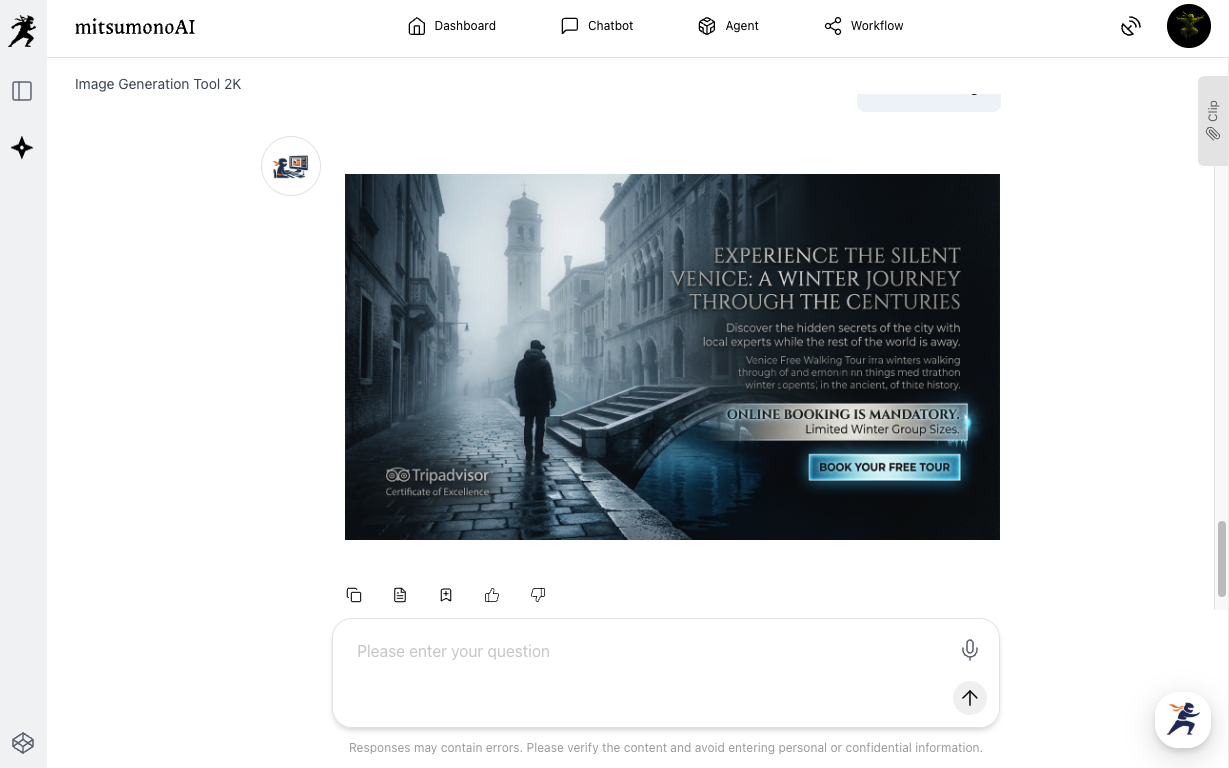
By translating the tour's written descriptions into a "mysterious winter" visual, the AI creates a banner that feels high-end and atmospheric, encouraging visitors to click that reservation button.
Summary: From Text to High-Conversion Graphics
This workflow is perfect for tour operators and travel agencies who need to visualize specific themes like "Seasonal Specials" or "Limited Tours" quickly and professionally.
- Step 1: Link your URL + Style Image, then Save to Clip.
- Step 2: Copy from Clip and set only the Case, Ratio, and Text in the 2K tool.
- Step 3: Your high-conversion web banner is ready for your site!
Ready to boost your winter bookings?
Take your tour website URL today and start creating visuals that capture the imagination of every traveler!
Production reference example