Instant Time-Saver: Create Blog and Social Media Posts in a Flash, Just by "Pasting" Your Flyer Image!
This article explains a secret trick: feed the completed flyer data (PDF/image) to an AI, and it automates information extraction and creates blog posts/SNS content. Learn how to synchronize print and digital outreach to maximize customer attraction.


Are you satisfied just printing your meticulously crafted flyers?
You put a lot of effort into creating flyers and POP displays for seasonal events or new menu announcements. The design is finalized, you submit it to the printer, and you breathe a sigh of relief.
Then, the moment you think, "Now I have to update the website's announcements and post on Instagram, too...," do you suddenly feel utterly exhausted?
The "Double-Effort Wall" that Assaults Marketing Staff
- The Vain Effort of Text Entry: All the information is on the flyer, but because it's an image file, you can't copy and paste, forcing you to type out all the text again from scratch on your phone.
- The Time Lag in Communication: You put it off with the thought, "I'll do it later," and the campaign starts before you've posted the announcement online, causing you to miss out on initial customer traction.
- Information Inconsistency: Manual transcription errors lead to fatal mistakes where the price or date is slightly different between the flyer and the website.
The essence of this challenge is the segmentation of the production workflow between print (analog) and web (digital). This prevents you from digitally reusing the valuable "block of information (the flyer)" you've worked so hard to create.
By reading this article, you will learn the "Asset Maximization Technique"—how to leverage AI as a "Brilliant Web Manager"—to instantly complete both your blog and social media posts simply by handing over your flyer data.
AI Becomes Your "Media Mix Manager"
mitsumonoAI integrates the following features to unlock the information trapped within images and PDFs and convert it into web content.
- File Analysis Assistant PRO (The PDF Interpreter): Reads PDF files, such as those used for printing, and accurately extracts and organizes text information like campaign periods, product names, prices, and catchy phrases.
- General-Purpose AI Model: GPT-4o, etc. (The Image Visualizer): Directly "looks" at image data like JPGs and PNGs, verbalizes the appeal—including the atmosphere and color scheme—and creates social media-friendly posts.
- Blog Article/Social Media Post Creation Workflow (The Content Generator): Based on the extracted information, it automatically generates SEO-conscious blog articles and social media posts with hashtags, optimized for each platform.
By utilizing these different AIs, your only task is to "upload the flyer." The AI then instantly transforms your print promotional material into engaging web content.
■ Practical Guide | Step-by-Step Explanation
Here, we simulate the case of a local patisserie, "Patisserie Mitsumono," using their autumn new-product fair flyer (PDF and image data) to announce the event on their blog and Instagram.
Step 1: 【Utilizing PDF】Extract Information with File Analysis and Create a Blog Post
If you have the PDF data for printing, use the "File Analysis Assistant PRO."
【Preparation/Execution】
Launch the File Analysis Assistant and upload the flyer's PDF data.
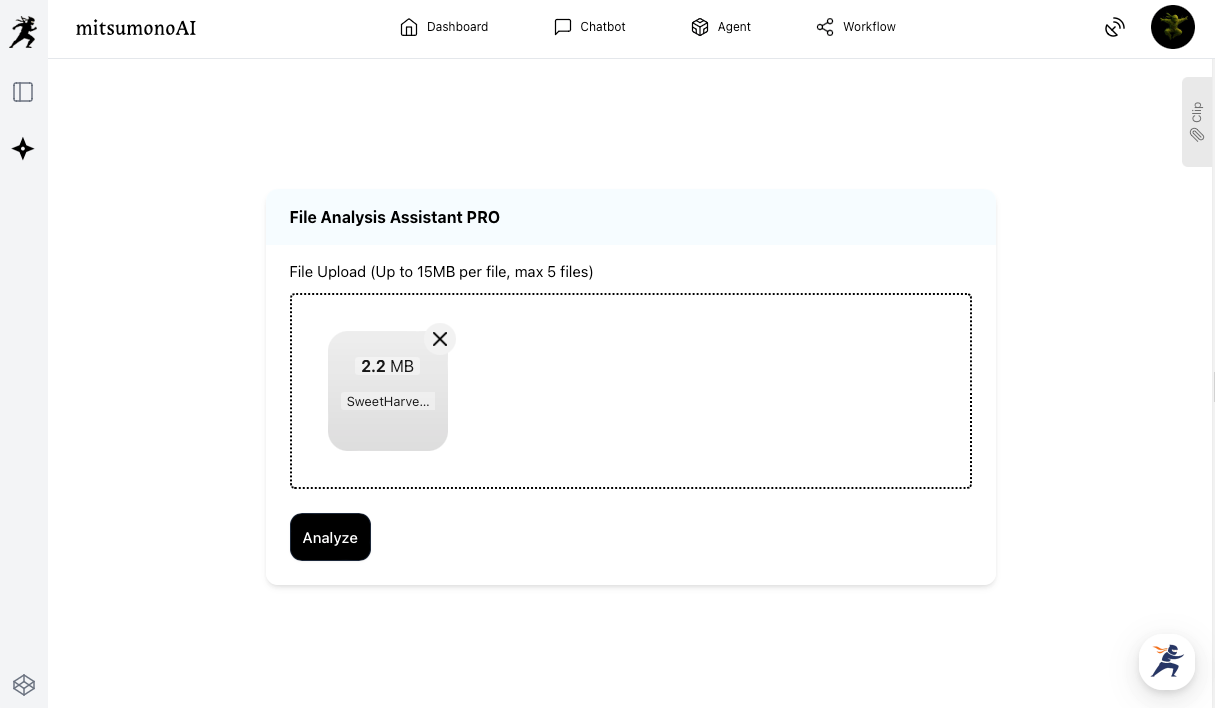
If you want to create a blog post directly from this, enter the following prompt.
Example Prompt:
"Please create a blog article based on the content of the uploaded flyer."

✅ Tip
If you want to specify the blog structure in more detail, we recommend using the Blog Article Creation Workflow.
By organizing the flyer's content with the File Analysis Assistant and pasting it into the chat field of the Blog Article Creation Workflow, you can create a blog post based on the flyer's information.
Step 2: 【Utilizing Images】Create Social Media Posts from Smartphone Photos or JPGs
If you have image data (JPG/PNG) on hand, or a photo of a handwritten POP taken with your smartphone, use the "AI Chat (such as GPT-4o)."
【Preparation/Execution】
Select AI Chat (in this case, Claude Sonnet 4.5). Other models are also compatible.
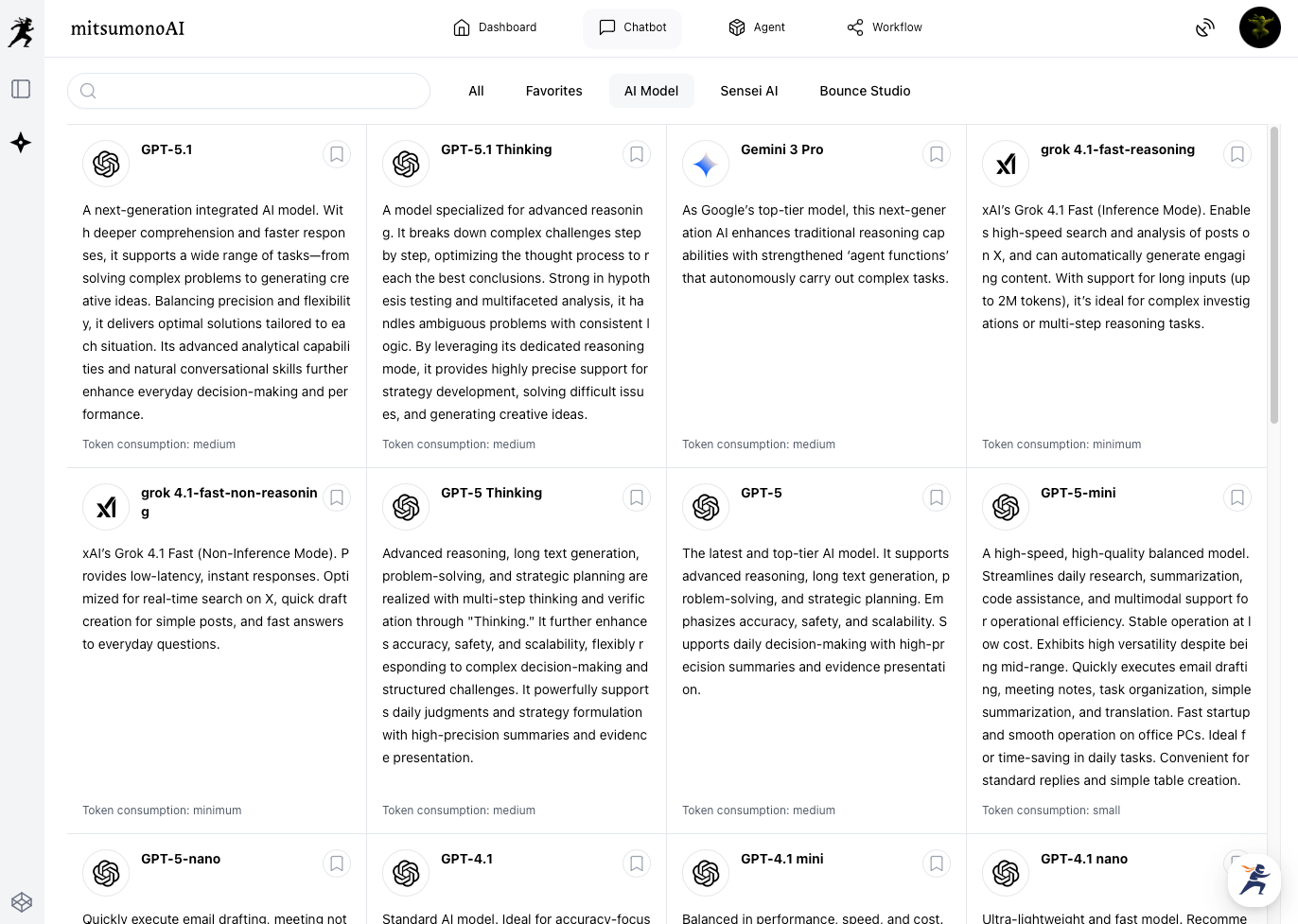
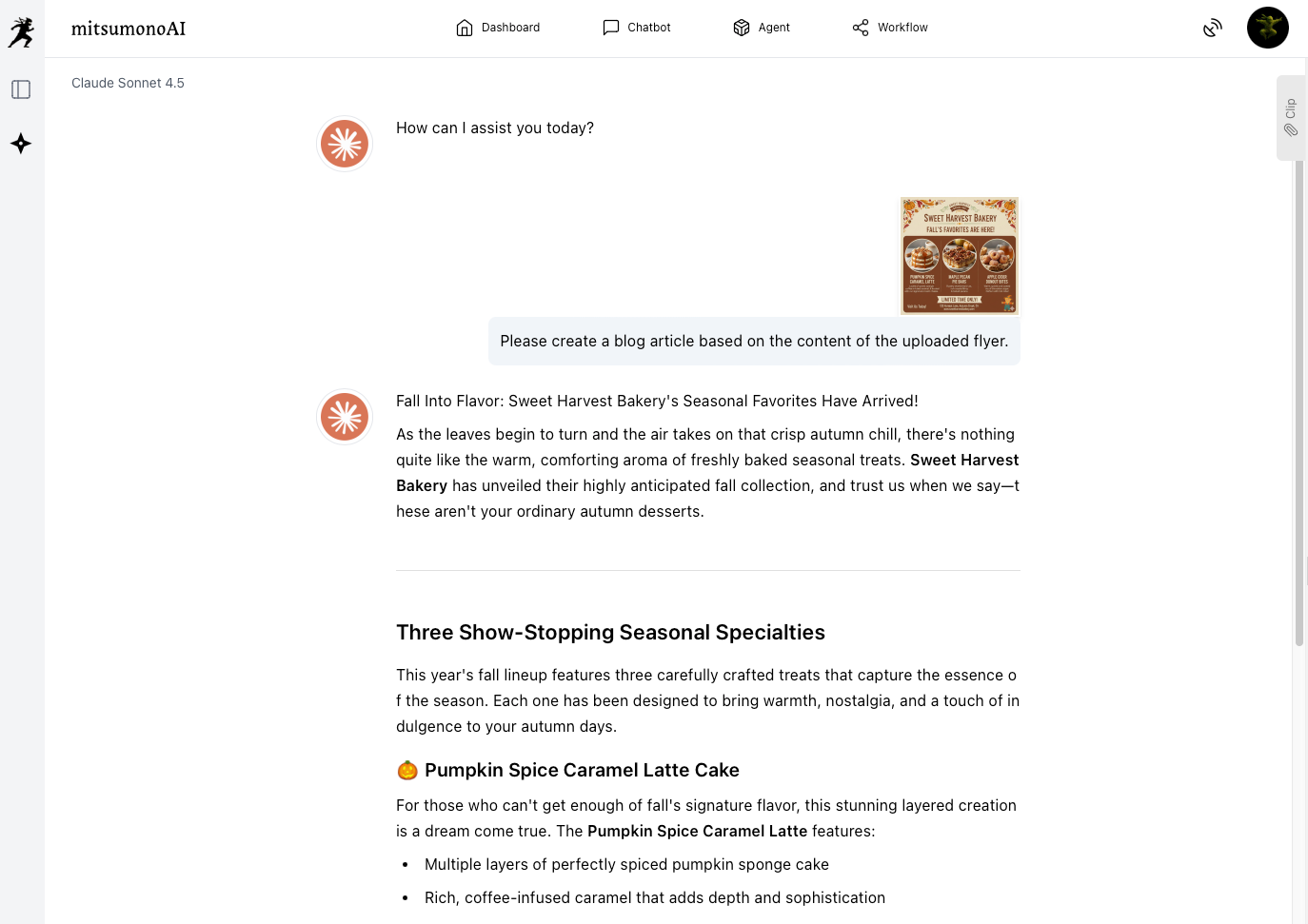
Upload the flyer image to the chat field and send the following prompt.
Example Prompt:
"Please create a blog article based on the content of the uploaded flyer."
You can also create social media post text, not just blog articles. In that case, give the following instruction.
Example Prompt:
"Based on the content of the uploaded flyer, please draft an introductory post for Instagram. "
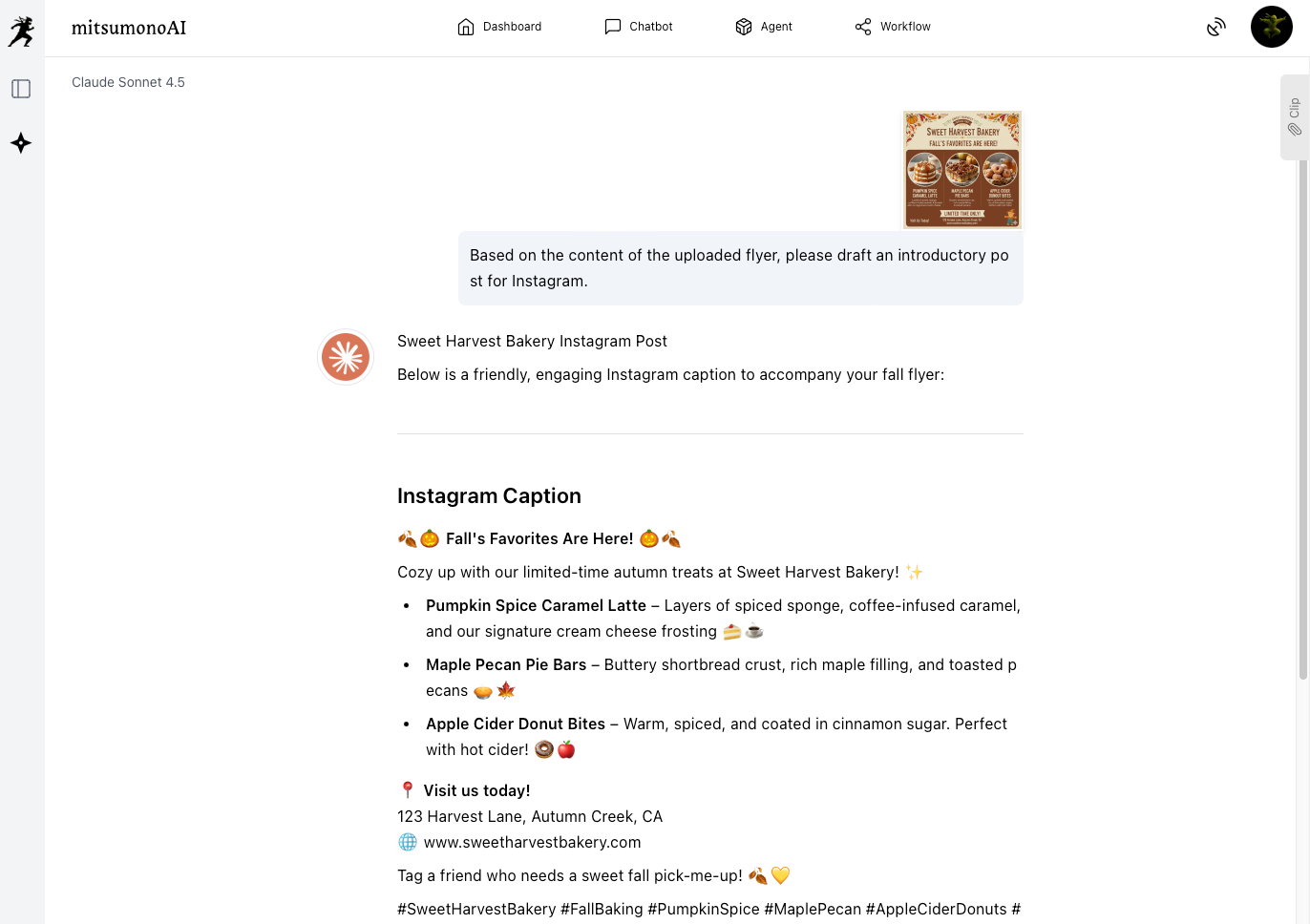
This will produce an Instagram post, including hashtags, that reads the visual information from the image.
■ Applications and Expansion (From Utilizing Past Assets to Competitor Analysis)
This "Image Reading" technology can be applied beyond daily promotions.
- Archiving Past Flyers: By having the AI read old flyer PDFs and turning them into blog articles, you can create a "Past Event Library" on your website. This content asset showcases your shop's history and activities.
- Digitizing Handwritten POPs: Take a photo of a blackboard or handwritten POP in the store, have the AI read it, and instantly post it to social media as the "Daily Special Menu."
- Analyzing Competitor Flyers: Upload an image of a competitor's flyer and use the AI as a sounding board by asking, "What are the key selling points of this flyer, and what are some ideas for differentiation that our company can use to compete?"
Conclusion
In this article, we introduced how to rapidly create blog and social media content from image data like flyers using AI.
- Use File Analysis Assistant PRO to accurately extract information as text from a PDF and generate an article.
- Use AI Chat to verbalize the visual appeal of photos and JPGs and convert them into the optimal format for each medium.
"Print" and "Web" are not separate jobs. By using AI as a bridge, you can generate infinite content from a single piece of source material.
Hand over the tedious transcription work to the AI, and use the time you save to focus on preparing the "Best Product" to welcome your customers.
mitsumonoAI is equipped with numerous features to support retail DX beyond the image analysis introduced here, including video script creation, automated review replies, and multilingual translation.
Other use cases and the latest information are available on the mitsumonoAI blog site.